Home | JSP | EJB | JDBC | Java Servlets | WAP  | Free JSP Hosting  | Spring Framework | Web Services | BioInformatics | Java Server Faces | Jboss 3.0 tutorial | Hibernate 3.0 | XML


Features

Search Host

Monthly Fee($)
Disk Space (MB)
Register With us for Newsletter!
Visit Forum! Post Questions!
Jobs At RoseIndia.net!

Have tutorials?
Add your tutorial to our Java Resource and get tons of hits.

We offer free hosting for your tutorials. and exposure for thousands of readers. drop a mail
roseindia_net@yahoo.com


Tutorials

Java Server Pages

JAXB

Java Beans

JDBC

MySQL

Java Servlets

Struts

Bioinformatics

Java Code Examples

Interview Questions

 
Join For Newsletter

Powered by groups.yahoo.com
Visit Group! Post Questions!

Web Promotion

Web Submission

Submit Sites

Manual Submission?

Web Promotion Guide

Hosting Companies

Web Hosting Guide

Web Hosting

Linux

Beginner Guide to Linux Server

Frameworks

Persistence Framework

Web Frameworks

Free EAI Tools

Web Servers

Aspect Oriented Programming

Free Proxy Servers

Softwares

Adware & Spyware Remover

Open Source Softwares

Night Sky Design in Photoshop


How to design a night sky scene?

With this tutorial, you will learn to design a night sky scene. Some easy steps have been used in this tutorial that makes it easy to learn for beginners.

Let's start

First Step:
Firstly you have to open a new file. So go to file menu select new. A popup menu will appear, control the height and width as you want to give size of your file.

Second Step:  
Select foreground color black then select paint bucket tool (G key) and fill in your file. The image will shown as giver below.

Third Step:              
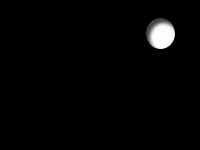
Now you have a file filled by black color, select ellipse marquee tool (M key) to design a moon with new layer. Draw a circle with shift key where you want on the file. Fill color white for the moon. The picture will appear as given below.

Fourth Step:    
Go to layer menu select layer style then inner shadow. Layer style popup menu will appear as giver below.
Fifth Step:
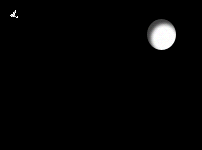
In the fifth step you have to design a star so open a new layer. For that you select a polygonal lasso tool (L key) and make selection as a star shape, when completed selection fill with white color and adjust size and place as you like.
Sixth Step:
In the sixth step you have to make many stars so. Select one star, alt key and move arrow key. The new star will come then place it on your file as you want. Do it till you want.
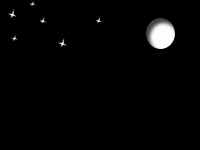
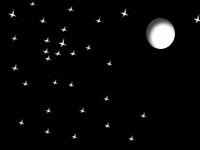
Final Image


  JDO Tutorials
  EAI Articles
  Struts Tutorials
  Java Tutorials
  Java Certification
 

Useful Links

Tell A Friend
Your Friend Name
Search Tutorials


RoseIndia.net Join Our Java  News Group

Home | JSP | EJB | JDBC | Java Servlets | WAP  | Free JSP Hosting  | Search Engine | News Archive | Jboss 3.0 tutorial | Free Linux CD's | Forum

About Us | Advertising On RoseIndia.net


Send your comments, Suggestions or Queries regarding this site at roseindia_net@yahoo.com.

Copyright © 2004. All rights reserved.