Home Photoshop Tutorials How to make a blooming Face.


How to make a blooming Face.
Posted on: December 15, 2006 at 12:00 AM
This tutorial will teach to design a blooming face. It is an easy step by step guide to learn design and I am sure that you can design as you want by reading this tutorial.

How to make a blooming Face.


This tutorial will teach to a simple way to give a blooming face effect. It is an easy step by step guide to learn easily. I am sure that you can design as you want by reading this tutorial.

Open A Picture: First open a picture to modify as I have opened here.

Duplicate Layer of the Picture: Make a duplicate layer of the picture.

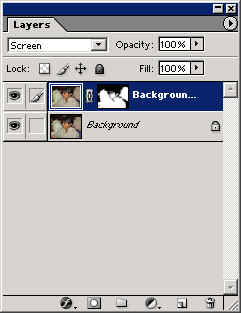
Add Layer Mask: Select your duplicate layer and click on the mask button of the layer as I have done here.

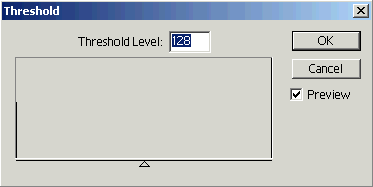
Add Threshold: Now I am going to use threshold, go to Image menu > Adjustments > Threshold and make adjustment as shown here.

Eraser Tool: Now select eraser tool (E key) and set opacity = 14%, Flow = 16% to remove the part you don't want.

Final Image

Related Tags for How to make a blooming Face.:
cimageantselectbuttoniomenumakeremoveclickkeyclitoolsetopenoocreatemoveopacityshowifforaddpicturemasktomodifyflowpicldcisheitliusepemodificationimfirstartceeraselayerinnomodpartasmntparwanminoomcaddminoomjadaceclesemaseagepenpimehowhrmodicatdosatadjustmentpacrasoldkirhabloomgoeaduandarcityrtwantttssthshostmavst6atifacemageicaicaplmovmindonomolo


More Tutorials from this section

Ask Questions?    Discuss: How to make a blooming Face.  

Post your Comment


Your Name (*) :
Your Email :
Subject (*):
Your Comment (*):
  Reload Image


Ask Questions?

If you are facing any programming issue, such as compilation errors or not able to find the code you are looking for.

Ask your questions, our development team will try to give answers to your questions.