
Search Tutorials
--Ads--Parsing Tables, Scanned PDFs and Multi-Column Layouts
Techniques for the documents that break naive text extraction.
Simple text extraction works for clean, single-column documents. Real-world PDFs are rarely that kind. Annual reports have tables, research papers have two columns, and old contracts are scanned images. This lesson shows how to detect and handle each of these problem cases.
Diagnose before you fix
Before choosing a parser, look at what your current one produces. This short script flags the most common problems per page:
from pypdf import PdfReader

def check_pdf(path: str) -> None:
    reader = PdfReader(path)
    for number, page in enumerate(reader.pages, start=1):
        text = page.extract_text() or ""
        words = text.split()
        issues = []
        if len(words) < 20:
            issues.append("little or no text (scanned page?)")
        if words and sum(len(w) == 1 for w in words) / len(words) > 0.3:
            issues.append("many single characters (broken spacing)")
        if text.count("|") > 10 or text.count("  ") > 50:
            issues.append("possible table")
        print(f"page {number}: {len(words)} words", "; ".join(issues))

check_pdf("annual-report.pdf")
Tables
Plain text extraction flattens a table into a stream of numbers with no column names, so "Q3 revenue" can no longer be found. The fix is to extract tables separately and convert them to Markdown, which keeps rows and headers together and which LLMs read well.
pip install pdfplumberimport pdfplumber
def table_to_markdown(table: list[list]) -> str:
rows = [[(cell or "").replace("\n", " ").strip() for cell in row] for row in table]
header, body = rows[0], rows[1:]
lines = ["| " + " | ".join(header) + " |", "|" + "---|" * len(header)]
lines += ["| " + " | ".join(row) + " |" for row in body]
return "\n".join(lines)
def extract_pdf_with_tables(path: str) -> list[dict]:
pages = []
with pdfplumber.open(path) as pdf:
for number, page in enumerate(pdf.pages, start=1):
tables = page.find_tables()
# Text outside the table areas
outside = page
for table in tables:
outside = outside.outside_bbox(table.bbox)
text = outside.extract_text() or ""
markdown_tables = [table_to_markdown(t.extract()) for t in tables]
pages.append({"page": number, "text": text, "tables": markdown_tables})
return pages
for page in extract_pdf_with_tables("annual-report.pdf"):
for table in page["tables"]:
print(f"--- table on page {page['page']} ---\n{table}\n")Store each table as its own chunk with a short description of what it contains. The lesson Table-Aware RAG goes further.
Scanned PDFs and images
A scanned page is a picture with no text layer. You have two options.
Option 1: OCR
Optical character recognition (OCR) converts the image into text. Tesseract is free and works well on clean scans.
pip install pytesseract pdf2image
# Also install the Tesseract program and Poppler (needed by pdf2image) for your OS
import pytesseract
from pdf2image import convert_from_path
def ocr_pdf(path: str, dpi: int = 300) -> list[str]:
images = convert_from_path(path, dpi=dpi) # one image per page
return [pytesseract.image_to_string(img, lang="eng") for img in images]Option 2: A vision-capable LLM
For difficult pages, such as poor scans, handwriting, forms, or tables inside images, a vision LLM usually does much better than OCR, and it can output clean Markdown directly. It costs more per page, so use it for pages where OCR fails rather than for everything.
import base64
import anthropic

client = anthropic.Anthropic()

def pdf_to_markdown(path: str) -> str:
    data = base64.standard_b64encode(open(path, "rb").read()).decode("utf-8")
    response = client.messages.create(
        model="claude-opus-5-5",
        max_tokens=16000,
        messages=[{
            "role": "user",
            "content": [
                {"type": "document",
                 "source": {"type": "base64", "media_type": "application/pdf", "data": data}},
                {"type": "text", "text":
                    "Transcribe this document to Markdown. Keep headings, lists and tables "
                    "(as Markdown tables). Describe charts in one sentence in square brackets. "
                    "Output only the Markdown."},
            ],
        }],
    )
    return response.content[0].text
The API accepts PDFs of up to 600 pages and 32 MB per request. Split larger files into page ranges first.
Multi-column layouts
Many extractors read straight across the page, mixing lines from the left and right columns into nonsense.
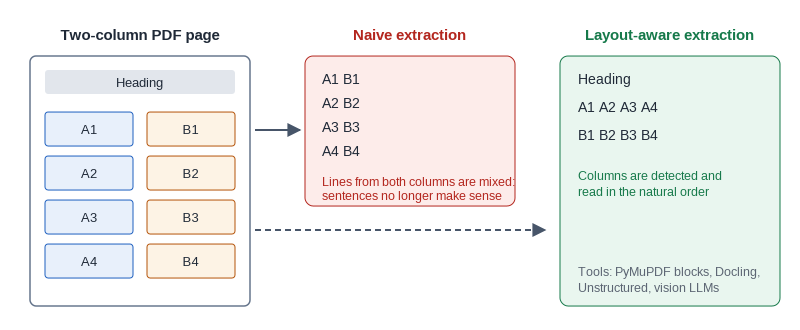
PyMuPDF returns text as positioned blocks. Sorting blocks by column, then by vertical position, restores the reading order for typical two-column pages:
pip install pymupdfimport fitz # PyMuPDF
def extract_columns(path: str) -> list[str]:
pages = []
with fitz.open(path) as pdf:
for page in pdf:
middle = page.rect.width / 2
blocks = [b for b in page.get_text("blocks") if b[4].strip()]
# b = (x0, y0, x1, y1, text, block_no, block_type)
full_width = [b for b in blocks if b[0] < middle and b[2] > middle]
left = [b for b in blocks if b[2] <= middle]
right = [b for b in blocks if b[0] >= middle]
ordered = (sorted(full_width, key=lambda b: b[1])
+ sorted(left, key=lambda b: b[1])
+ sorted(right, key=lambda b: b[1]))
pages.append("\n".join(b[4].strip() for b in ordered))
return pagesThis simple rule puts full-width blocks (like a title) first. For complex layouts with figures, sidebars and mixed column counts, use a layout-aware parser, covered in the next lesson.
Repeated headers and footers
Page headers, footers and page numbers repeat on every page and pollute chunks. Find lines that appear on most pages and remove them:
from collections import Counter

def remove_repeated_lines(pages: list[str], min_share: float = 0.6) -> list[str]:
    counts = Counter(line.strip() for page in pages for line in set(page.splitlines()) if line.strip())
    repeated = {line for line, n in counts.items() if n >= min_share * len(pages)}
    return ["\n".join(l for l in page.splitlines() if l.strip() not in repeated) for page in pages]
Key takeaways
- Check extraction quality page by page before indexing; empty or garbled pages are common.
- Extract tables separately and store them as Markdown so headers stay with their values.
- Use OCR for clean scans and a vision LLM for hard pages, forms and handwriting.
- Restore reading order for multi-column pages, and strip repeated headers and footers.