
JDK 26 Tutorial: A Complete Beginner's Guide to Java Development Kit 26
Java is improving and coming up with new features and improvements, making it an ideal framework for cloud native applications, enterprise applications, web services, Android applications and big data platforms. JDK 26 comes with new features and improvements. In this JDK 26 tutorial we will teach you how to install and use Java 26 for development of applications with improved performance, enhanced security and improved performance.
In this JDK 26 tutorial we introduce you with the fundamentals of Java Development Kit 26 and explains how to get started with writing Java applications. You will learn to download and install JDK 26 for developing your programs.
What is JDK 26?
JDK (Java Development Kit) is a software toolkit for development, compiling, debugging and running Java applications. It comes with a compiler (javac) and Java Runtime (java) to compile and run the applications. It provides tools like debugging tools, documentation, and numerous utilities. Check tutorial: Java 26 (JDK 26) Features with examples.
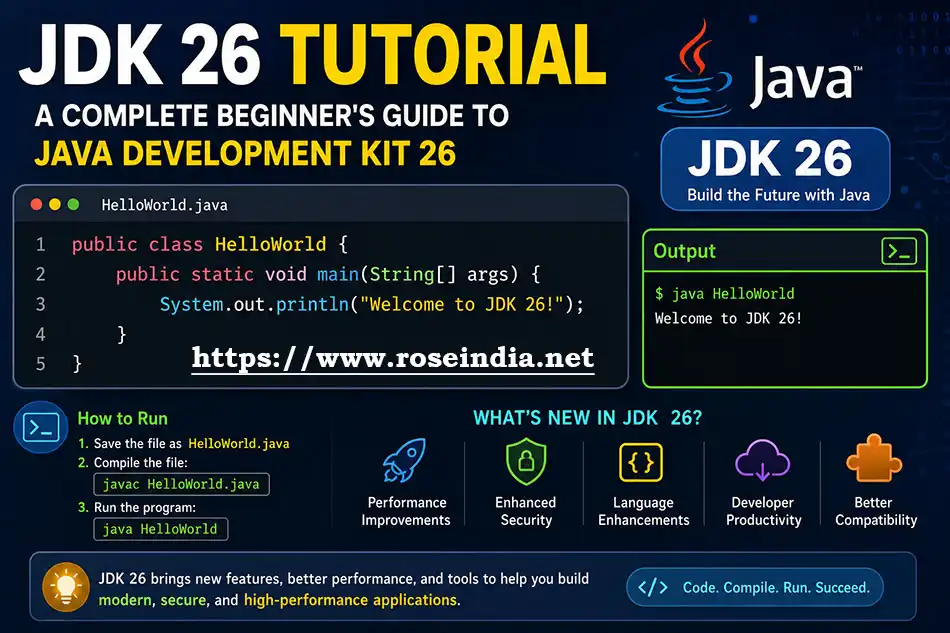
JDK 26 is released with six-month support and Oracle will provide support till the new version is released. JDK 26 builds upon the previous release of JDK and by introducing the new capabilities through Java Enhancement Proposals (JEPs). New features and enhancements are released with JDK 26. Through Java Enhancement Proposals (JEPs), Oracle is providing incremental improvements and the latest innovations.
Installing JDK 26
Now we will learn to install JDK 26 on a Windows 10/11 machine. Getting started with JDK 26 is straightforward:
- Download JDK 26 for your operating system. For example download the MSI installer for windows
- Install the package using the installer. Run the downloaded exe file and follow the installer to complete the installation.
- Set the JAVA_HOME environment variable. The next step is to set the JAVA_HOME environment variable. You should add the directory url where you installed Java in JAVA_HOME variable
- Add the JDK's bin directory to your system PATH. Next set the path variable and it should point to the bin directory of your installation.
- Verify the installation: The final step is validation of installation and you can validate it by running the commands explained below.
After installation you can verify Java by running following commands:
java --version
javac --version
If both commands display version 26, your installation is ready and you can proceed with the development of your Java program. Here is the screen shot of verification of Java installation:
SCREEN_SHOT
We have successfully installed Java on our windows system, we can proceed now with the next step of writing, compiling and running a simple Java program.
Writing Your First Java Program
Now we will create a simple Hello world program and test it. Create a file named HelloWorld.java.
public class HelloWorld {
   public static void main(String[] args) {
      System.out.println("Welcome to JDK 26!");
  }
}
Compile the program:
javac HelloWorld.java
Run it:
java HelloWorld
Output:
Welcome to JDK 26!
Key Features of JDK 26
You should understand the key features and improvements that came in JDK 26. JDK 26 includes improvements across several areas:
- Enhanced language features - There are many feature improvements in JDK 26.
- Better JVM performance - JVM comes with better performance.
- Improved Virtual Threads - There are improvements in the virtual threads.
- Foreign Function & Memory API enhancements - These are good for building robust applications.
- Vector API improvements - Vector API comes with the improvements in the JDK 26.
- Garbage Collection optimizations - Garbage collection process is much more optimized to enhance the performance of the application.
- Security enhancements - There are security enhancements with this version of JDK.
These enhancements help developers build faster, safer, and more scalable applications.
Best Practices
Java 26 comes with many improvements and enhancements that enables developers to build highly efficient applications. As a developer you should follow these best practices while building applications in JDK 26. When developing with JDK 26, consider the following recommendations:
- Use the latest language features where appropriate.
- Keep dependencies updated.
- Follow Java coding conventions.
- Write unit tests for application logic.
- Use build tools like Maven or Gradle.
- Monitor application performance using JDK profiling tools.
- Adopt Virtual Threads for highly concurrent applications when suitable.
Why Learn JDK 26?
We have seen the various features that come with the JDK 26. We should understand the features of JDK 26 and learn it. This will enable developers to use the latest features that come with JDK 26. You should use the JDK 26 for building modern Java applications. Companies are investing heavily in Java for building applications for cloud computing, microservices, banking, healthcare, telecommunications, and enterprise software. So, it's necessary for the developers to learn JDK 26 and start using it in their programming.
JDK 26 Tutorial:
- Java 26 (JDK 26) Features with examples
- Install JDK 26: A Complete Beginner's Guide (2026)
- Java 26 HTTP3 tutorial
Conclusion
JDK 26 is another important step in the evolution of Java Programming language, although its short term supported version builds the robust backbone for further improvements. Learning JDK 26 is equally important for beginners and experienced developers. By mastering the installation, basic programming, and learning the latest features, you will be well prepared for newest applications development.
Java Tutorials: