
How to Install JDK 26 on Windows, macOS, and Linux
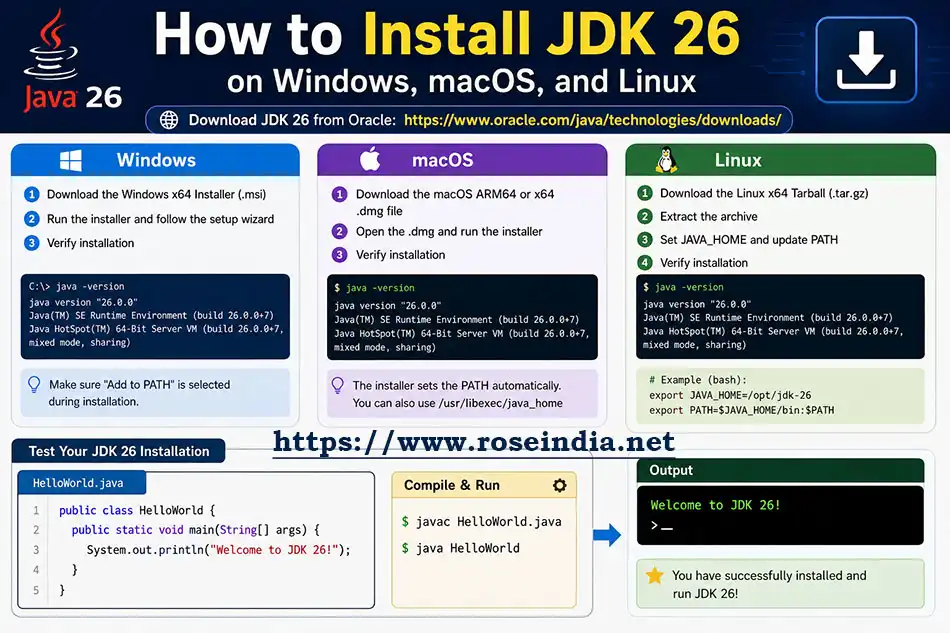
Java.JDK 26 was officially released on March 17, 2026 and is available for download from the oracle official website. Java is available for Windows, macOS, and Linux operating systems as installer or archive file. You will be able to install JDK with these files. In this post we are going to learn how to download and install Java/JDK on Windows, macOS and Linux operating systems.
Java Development Kit (JDK) 26 is the latest release of the Java platform which can be downloaded from the official website and installed on respective operating systems. Java 26 provides developers with the newest language enhancements, performance improvements, security updates, and APIs. You should upgrade your Java from an older version to JDK 26. Installing JDK 26 is the first step toward building modern Java applications.
In this tutorial, you'll learn how to install JDK 26 on Windows, macOS, and Linux, verify the installation, configure environment variables, and run your first Java program. It contains everything you need to know to get started with Java/JDK 26. JDK is available for all the major platforms including Windows, Linux and macOS. On these platforms Java can be installed and development work can be done. Once the software is compiled and packaged it can be run on all the platform where JRE is available.
JDK 26 brings modern features in the Java programming language and it can be used to develop modern applications like enterprise applications, applications for smart phones, cloud native applications and applications for embedded devices. So, the usability of Java is huge and JDK 26 brings more enhancements to this eco-system.
What is JDK 26?
JDK (Java Development Kit) is a software package that contains everything required to develop Java applications. JDK is not a single software but its a package of many components and utility programs.
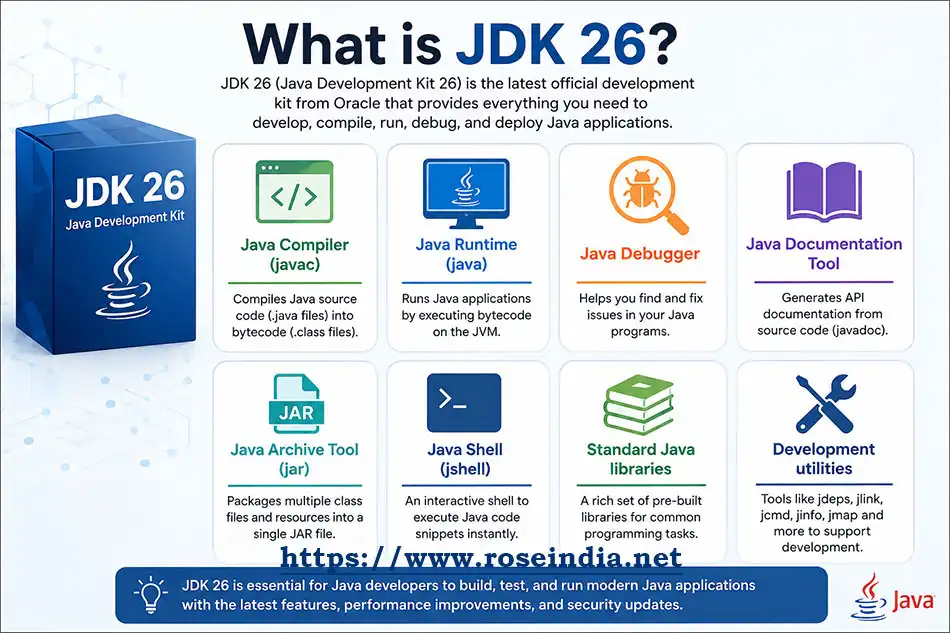
It includes:
- Java Compiler (javac)
- Java Runtime (java)
- Java Debugger
- Java Documentation Tool
- Java Archive Tool (jar)
- Java Shell (jshell)
- Standard Java libraries
- Development utilities
JDK 26 allows developers to create applications for desktops, servers, cloud platforms, Android backend services, enterprise systems, and AI-powered applications. JDK is distributed from the Oracle Official website or if you want an open source one then download it from OpenJDK website.
Prerequisites
There are certain prerequisites of installing JDK 26 and your system must meet these prerequisites. In a nutshell you should have Administrative privileges, 64-bit operating system and 200-400MB free space on your system. If you don’t have administrative privileges then you won’t be able to install JDK on your system. Before installing JDK 26, ensure that:
- Your computer has administrator privileges.
- You have an internet connection.
- You remove very old Java versions if they are no longer required.
- You know whether your operating system is 64-bit.
Download JDK 26
You can download JDK 26 from:
- Oracle JDK - Here you will find the Oracle distribution of Java.
- OpenJDK - If you prefer OpenJDK then visit this url and download it for your operating system.
- Eclipse Temurin (Adoptium) - This is another distribution of Java that you can download and install on your computer.
- Amazon Corretto - This is another distribution of OpenJDK from Amazon.
- Microsoft Build of OpenJDK - You can also try Microsoft Build of OpenJDK for your application development.
- Azul Zulu - Azul Zulu is a certified, high-performance binary distribution of OpenJDK provided by Azul. It serves as a drop-in replacement for Oracle Java and supports multiple operating systems, architectures, and cloud environments.
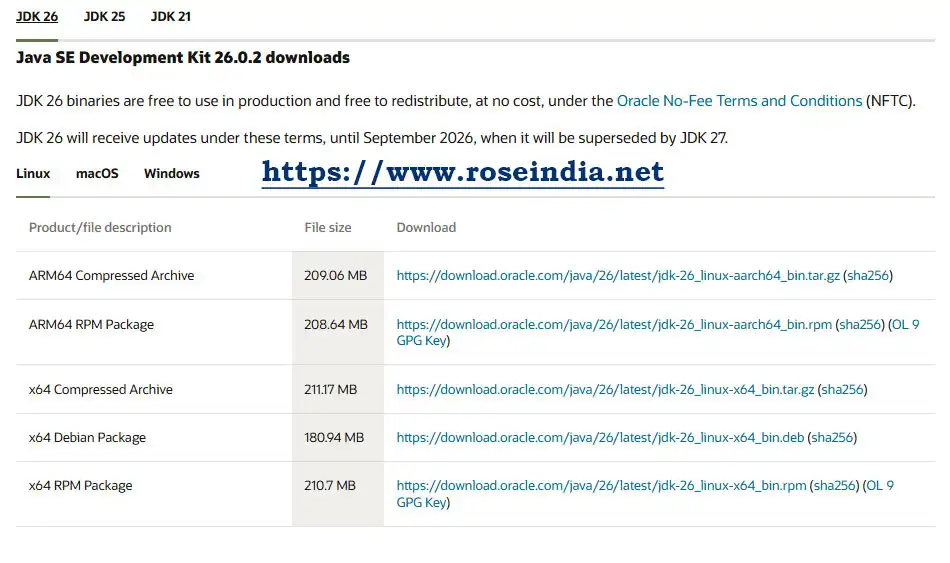
Choose the installer appropriate for your operating system.
Typical file names include:
Windows: jdk-26_windows-x64_bin.exe
macOS: jdk-26_macos-x64.dmg
Linux: jdk-26_linux-x64_bin.tar.gz
The file name might be little different based on the version of JDK you are downloading, so be a little careful during the installation process and replace file name correctly while running the installation.
Install JDK 26 on Windows
The installation of JDK on Windows is very straight forward, you have to download the exe file, double click on the installer to start the installation process and finally follow the installer to complete the installation. Here is the screen shot of JDK download section of Oracle website:
Step 1: Run the Installer
Double-click
jdk-26_windows-x64_bin.exe
Click Next
Accept the default installation path.
Example
C:\Program Files\Java\jdk-26
Click Install
After installation completes, click Finish
All these steps complete the installation of JDK 26 on your windows operating system. You can check our video Installing JDK 26 | Step-by-Step Installation Guide for Windows.
Step 2: Set JAVA_HOME
Next step is to add the JAVA_HOME environment variable and for this follow the following steps.
Open
0Settings
→ System
→ About
1→ Advanced System Settings
Click: Environment Variables
Create a new system variable.
2Variable Name: JAVA_HOME
Variable Value: C:\Program Files\Java\jdk-26
Here you should replace the value with the path of Java installation on your system.
3Step 3: Update PATH
You should add the bin directory of JDK installation in the system path variable. This will enable you to access JDK tools such as java and javac from the command prompt. For this edit the Path variable.
Add: %JAVA_HOME%\bin
Click OK.
4Step 4: Verify Installation
Open Command Prompt.
Run
java --version
5Example output
java 26
Java(TM) SE Runtime Environment
6Java HotSpot(TM) 64-Bit Server VM
Now verify the compiler.
javac --version
7Output
javac 26
Congratulations! JDK 26 is installed successfully on your Windows system and you will be able to proceed further with the development of Java applications.
8Install JDK 26 on macOS
In macOS installer is downloaded as a .dmg file and here we are discussing the installation of JDK through .dmg file on your macOS operating system. Installation of Java with the .dmg file is very easy and you should follow the steps given here to install Java on your macOS machine. If using the DMG installer:
Double-click: jdk-26.dmg
Follow the installation wizard.
9Once installed, open Terminal.
Verify
java --version
0Locate the installation.
/usr/libexec/java_home -V
Set JAVA_HOME
1export JAVA_HOME=$(/usr/libexec/java_home)
Add it permanently to
~/.zshrc
2or
~/.bash_profile
Reload
3source ~/.zshrc
We have successfully installed JDK 26 on our macOS operating system, now we can proceed with the development of projects on our macOS. The next step for you will be to run the simple Java programs.
Install JDK 26 on Linux
If you have downloaded the tar.gz file then you need to extract the file and move the files into the /opt/ directory and include it in the path variable.
4Extract
tar -xzf jdk-26_linux-x64_bin.tar.gz
You should replace the above file name with the file name of your downloaded file name.
5Move it
sudo mv jdk-26 /opt/
Edit
6nano ~/.bashrc
Add
export JAVA_HOME=/opt/jdk-26
7export PATH=$JAVA_HOME/bin:$PATH
Reload
source ~/.bashrc
8Verify
java --version
Here replace /opt/jdk-26 with your JDK installation path. It is necessary to set JAVA_HOME variables and path variables correctly.
9Verify JAVA_HOME
Next you should verify the JAVA_HOME variable in your respective operating systems. Here are the steps for validating in your operation system.
Windows
echo %JAVA_HOME%
0Linux/macOS
echo $JAVA_HOME
Expected output
1/opt/jdk-26
or
C:\Program Files\Java\jdk-26
2The JAVA_HOME variable is used by various programs to run Java currently in your system, so setting up this variable is important.
Install JDK 26 Using Package Managers
You also use the package managers to install Java on your target operating systems. Here we are discussing the installation with the package manager.
Ubuntu
On Ubuntu operating system you should run these commands to install JDK on your system:
3sudo apt update
sudo apt install openjdk-26-jdk
Fedora
On Fedora following command can be used:
4sudo dnf install java-26-openjdk
Arch Linux
On Arch Linux following command can be used:
sudo pacman -S jdk26-openjdk
5macOS Homebrew
On macOS operating systems you can use Homebrew for installing Java. Run the following command to install JDK using Homebrew:
brew install openjdk@26
Your First Java Program
Create HelloWorld.java file and add following code:
6
public class HelloWorld {
   public static void main(String[] args) {
      System.out.println("Welcome to JDK 26!");
   }
}
Above code creates a HelloWorld Java program that simply prints "Welcome to JDK 26!" message on the console. We have used the System.out.println() function to print the message on the console. Complete code is wrapped into HelloWorld class and there is a method public static void main(String[] args), which is the entry point in the Java program. JVM searches for the public static void main(String[] args) method in the class and calls this method in runtime.
Compile
javac HelloWorld.java
7Run
java HelloWorld
Output
8Welcome to JDK 26!
Check Installed Java Version
java --version
Compiler version
9javac --version
JShell
jshell
0Common Installation Problems
java command not found
Cause:
PATH is not configured.
Solution:
1Add
JAVA_HOME/bin
to your PATH.
2javac not recognized
Cause:
Only the Java Runtime is installed.
Solution:
3Install the full JDK instead of just the JRE.
Wrong Java Version
Run
java --version
4If another version appears:
- Update PATH
- Update JAVA_HOME
- Remove older Java installations if they are no longer needed
How to Uninstall Older JDK Versions
If you are upgrading from the older version of JDK and you want to delete the previous versions of JDK then this section is for you. In this section we will learn how to uninstall JDK versions from your host operating system.
Windows
On windows it is easy to uninstall the older version of JDK through the add remove programs. Here are the detailed steps of uninstalling older version of JDK from Windows:
5- Open Control Panel
- Programs and Features
- Select old JDK
- Uninstall
macOS
On macOS you have to simply delete the older version directory from your system. Usually JDK is installed in the /Library/Java/JavaVirtualMachines/ directory and you should remove the JDK directory you don’t want from here.
Delete the old JDK directory from:
/Library/Java/JavaVirtualMachines/
6Linux
In Linux it is much easier to remove the JDK from package manager. Remove using your package manager.
Example
sudo apt remove openjdk-21-jdk
7Here you should correctly provide the version of JDK you are removing with the apt command.
Install an IDE
After installing JDK 26, you can use any modern Java IDE:
- IntelliJ IDEA
- Eclipse IDE
- Apache NetBeans
- Visual Studio Code (Java Extension Pack)
These IDEs automatically detect your installed JDK and provide features like code completion, debugging, refactoring, testing, and project management. These IDE’s will help you in fast development of your project. IDE manages the project dependency management, compilation, packing and deployment tasks very easily. So, you should learn these IDE’s for the development of your project. Eclipse IDE is one of the most used IDE by developers for developing Java applications. These days developers also started using Visual Studio code for Java application development. But it’s better for the beginners to first learn Eclipse IDE and master application development in Eclipse.
8Best Practices
Java developers should follow certain best practices like keep JDK updated, set up JAVA_HOME and others. This will help in upgrading to the latest skills in Java programming technologies. Here are the some of the best practices that beginners should follow:
- Keep JDK updated to the latest release.
- Set JAVA_HOME correctly.
- Avoid installing multiple JDK versions unless necessary.
- Use a version manager if you frequently switch between Java versions.
- Verify java --version before starting a new project.
Frequently Asked Questions (FAQ)
Here are various FAQ’s that beginners often ask.
Is JDK 26 free?
Yes. OpenJDK builds are free and open source. Oracle also provides JDK downloads under its licensing terms.
9Do I need the JRE separately?
No. JDK 26 already includes the Java Runtime Environment required to run Java applications. If you install JDK you will get two 2 things Java compiler and Java runtime, so you don’t need JRE separately.
Can I install multiple JDK versions?
Yes. You can keep JDK 17, JDK 21, and JDK 26 installed simultaneously and switch between them by changing JAVA_HOME and your PATH. You can install different versions of JDK and then change the version simply by updating the values of JAVA_HOME and PATH environment variables. You have to follow the specific method in your operating system.
How do I check if JDK 26 is installed?
Run:
0java --version
javac --version
Both commands should display version 26.
1Which JDK distribution should I choose?
If you're a beginner, Eclipse Temurin (OpenJDK) is a popular free choice. Oracle JDK is also suitable if it fits your licensing requirements. You can use any of the JDK distributions for learning Java. Most developers are using OpenJDK for development and deployment of large scale enterprise applications.
Conclusion
In this tutorial I have explained to you how to install and configure JDK on your various operating systems. We have also shown you how to make your first Java program and run it. Installing JDK 26 is straightforward on Windows, macOS, and Linux. Once installed, verify the setup using java --version and javac --version, configure JAVA_HOME, and compile your first Java program. With JDK 26 in place, you're ready to explore modern Java development, build applications, and take advantage of the latest features in the Java ecosystem.
Author: Deepak Kumar | Last Updated: 19-Aug-2026
2