
JavaScript add row dynamically to table
|
|
We can add rows to the table by adding a pair of <TR></TR> tags. If we want to add row to a table dynamically then we can also do this with the JavaScript code. In this example we will describe you how to add row dynamically to the table by the program.
To illustrate example, we have first created a HTML page and into this page we have created a table with one row. We have one button "Add Row" also. It calls method addRows() on the click event of button which is defined in the <script></script> i.e in JavaScript.
 function addRows(){
  var TABLE = document.getElementById('tableId');
  var BODY = TABLE.getElementsByTagName('tbody')[0];
  var TR = document.createElement('tr');
  var TD = document.createElement('td');
  TD.innerHTML = 'This is a new row added';
  TR.appendChild (TD);
  BODY.appendChild(TR);
 }
|
First line of the function takes the table element reference into a variable TABLE. In the second line of code we have created a variable BODY which takes the reference to TABLE's body. In the third and fourth line of code we have created two elements "tr" and "td" and hold their reference into variables TR and TD respectively. After having TR and TD we can add them to the table by using the appendChild() method.
TR.appendChild (TD) appends TD to the table row TR and further it can be added to the table's body BODY.appendChild(TR).
Code :
<html>
<head>
  <title>
     Add row dynamically to table
  </title>
 <script type="JavaScript">
 function addRows(){
  var TABLE = document.getElementById('tableId');
  var BODY = TABLE.getElementsByTagName('tbody')[0];
  var TR = document.createElement('tr');
  var TD = document.createElement('td');
  TD.innerHTML = 'This is a new row added';
  TR.appendChild (TD);
  BODY.appendChild(TR);
 }
 </script>
</head>
<body>
 <div style="background: #cf2255; width:'100%';" align="center">
  <font color="#ffffcc" size="12pt">
	<b>Add new row example</b>
  </font>
 </div>
 <center>
  <div style="background: #ffffcc; width:'100%';" align="center">
   <table id="tableId" border="1" cellpadding="0"
                       cellspacing="0" width="50%">
      <tr>
         <td width="50%">This is the very first row</td>
      </tr>
   </table>
  <input type="button" onclick="addRows();" value="Add Row" />
 </div>
</center>
</body>
</html>
|
Output :

Before adding row, the table has its default one row with the <td></td> having text "This is the very first row". Click on "Add Row" button.
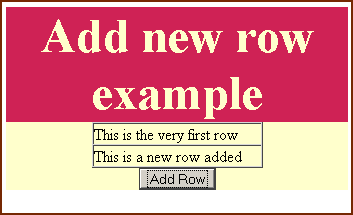
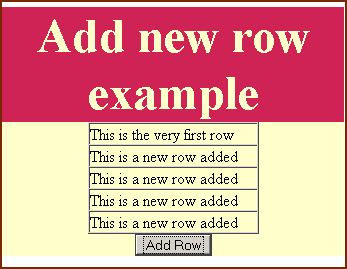
As soon as you click on the button "Add Row" it will add a new row to this table with the text in the column as "This is a new row added".


Tutorials
- Java 26 (JDK 26) Features with examples
- Top 10 Reasons to Learn Java in 2026
- JDK 26 Tutorial
- Java Certification Roadmap 2026: Which Oracle Certs Matter
- Install JDK 26: A Complete Beginner's Guide (2026)
- What Is Java? A Complete, Up-to-Date Guide for 2026
- Java 26 HTTP3 tutorial - HTTP 3 support in JDK 26 - How to use HTTP/3 in Java 26 application?
- JDK 28 Preview: Value Objects, Shenandoah GC & JSON API
- Java Tutorials