How to Install Java on Any System: The Complete 2026 Beginner’s Guide
How to Get Java: Complete Beginner’s Guide to Downloading, Installing & Setting Up Java - Step-by-step guide to make your development environment ready for Java application development.
Java is more than 25 years old, a programming language currently being used for development of enterprise grade applications. Java also comes with the feature to develop cloud native applications for the enterprises. So, Java is the top programming language for development of applications in 2026 and beyond. If you have decided to learn Java to make a career for the future then this is a good decision. Experienced Java developers are in high demand in the IT industry.
Java is one of the world’s most trusted and robust programming languages, which is being used for intranet, enterprise web applications and cloud applications development. Java is used in Android development, enterprise applications, cloud-native apps, financial systems, backend server applications and millions of backend micro-services. This tutorial is equally important for a student, developer, or someone starting your programming journey, the first step is learning how to get Java installed properly.
This comprehensive guide you will learn:
- What Java actually is
- What JDK, JRE, and JVM mean
- Which Java distribution to download
- How to download Java on Windows, macOS, and Linux
- How to set Java PATH and JAVA_HOME
- How to test your Java installation
- How to run your first Java program
- Common installation issues and solutions
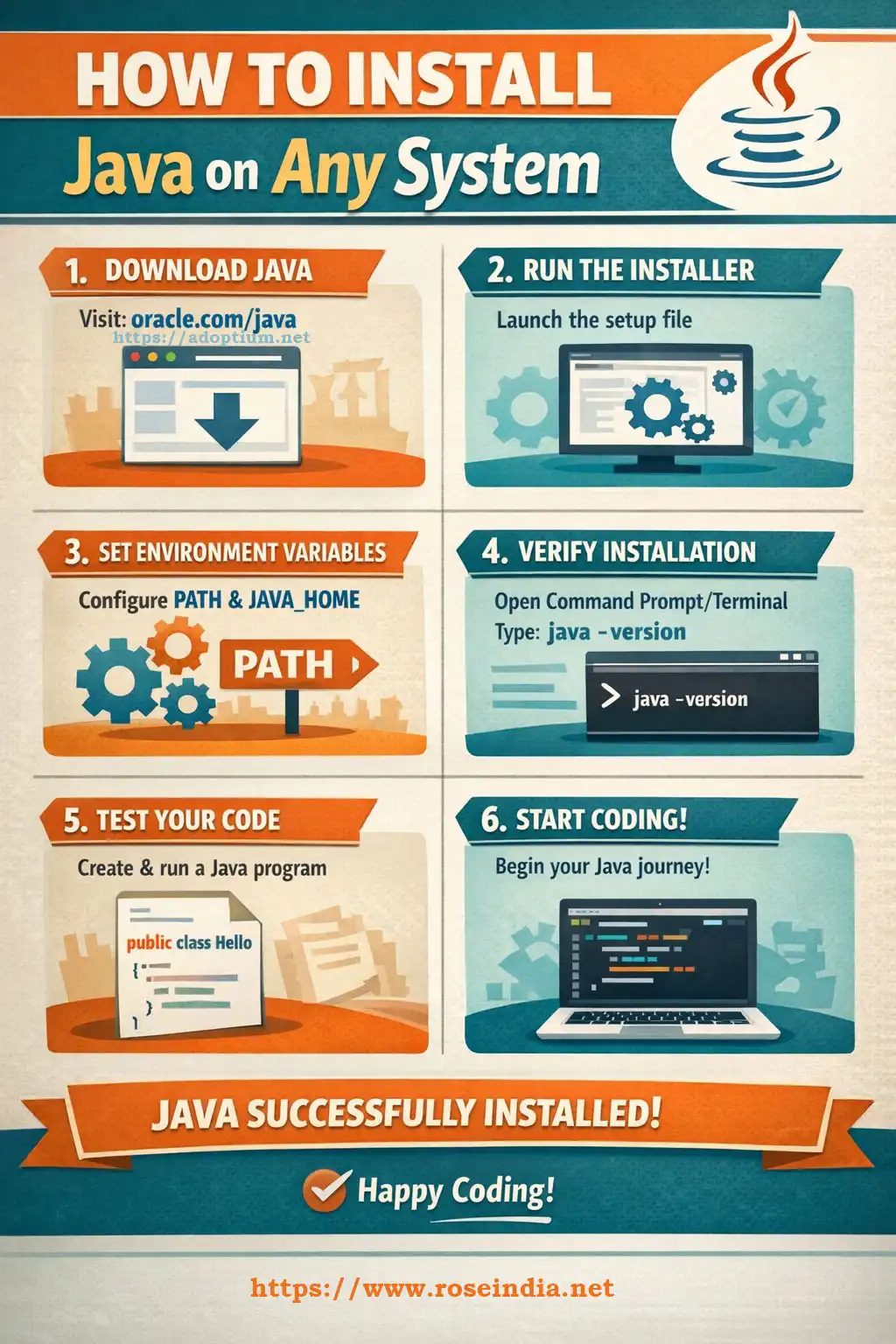
You will find everything to set up Java in your development environment and get it ready for Java based application development. By the end, you’ll have a fully working Java environment that you can use to learn Java or build anything in the Java programming language. So, let's get started with the step-by-step process of Java installation and configuration.
1. Understanding What “Java” Really Means
As a beginner you should understand these terms related to Java programming language:
- JDK - Java Development Kit
- JRE - Java Runtime Environment
- JVM - Java Virtual Machine
Let's first understand these terms and get yourself familiarised with these terms.
✔ JDK (Java Development Kit)
If you are a programmer and want to develop Java applications then this is the tool that you should install on your machine. JDK or Java Development Kit is a set of tools used to develop Java applications.
JDK includes:
- Java Compiler (javac)
- Java Runtime Environment (JRE)
- JVM (Java Virtual Machine)
- Debugger & Tools
If you want to write, compile, and run Java programs then you need Java Development Kit ( JDK). JDK is distributed as an installer or archive file for the targeted platform or operating system.
✔ JRE (Java Runtime Environment)
This allows you to run Java programs but not compile them. If you are using a Java Program developed by someone else then you should download and install JRE or Java Runtime Environment to run your program. You can install JRE only on your system or just install JDK which includes JRE as well.
✔ JVM (Java Virtual Machine)
JVM is also known as Java Virtual Machine which is an engine engine that executes Java bytecode. You use javac to compile code into bytecode and then use the JVM to execute the bytecode on the host machine.
Java works on all operating systems because the JVM converts bytecode into machine instructions specific to each OS.
✔ So what should you download?
Always download a JDK, not just a JRE. For development it is required to download JDK for development of Java programs. In the distribution of JDK you will also get JRE for executing your program.
2. Which Java Version Should You Install in 2026?
Java releases updates frequently:
- Long-Term Support (LTS) versions → Recommended for stability
- Feature releases → Latest features, updated every 6 months
Best recommendation for beginners:
⭐ Install the latest LTS version (Java 21 or Java 23)
Why?
- Stable
- Supported by all IDEs
- Compatible with tutorials and books
- Enterprise-ready
- Receives security patches for years
The LTS version of JDK is the long term supported version of JDK and for development & deployment of your applications you should always download the LTS version of Java.
3. Where to Download Java Safely (Important!)
Many websites host Java files, but downloading from the wrong source can lead to:
- Malware
- Outdated versions
- Incorrect bundles
- Licensing issues
⭐ Always download Java from one of these official vendors:
✔ 1. Oracle JDK (official)
https://www.oracle.com/java/technologies/downloads/
✔ 2. OpenJDK (free & open source)
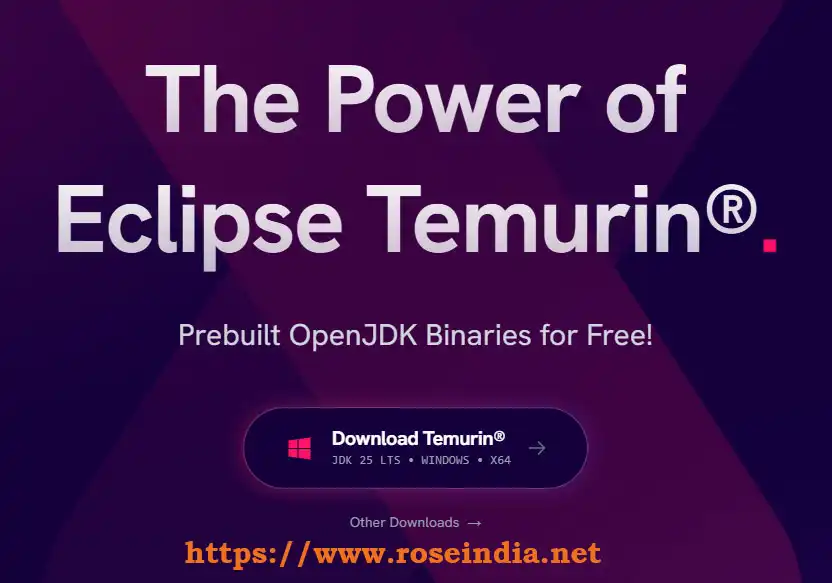
✔ 3. Amazon Corretto (AWS optimized)
https://aws.amazon.com/corretto/
✔ 4. Microsoft Build of OpenJDK
https://learn.microsoft.com/java/openjdk/
✔ Recommendation
You can find Java in all the above sites but for most developers, Oracle JDK or OpenJDK is the best distribution for development and deployment of Java applications.
4. How to Download and Install Java on Windows (Step-by-Step)
Windows users make up a huge portion of Java learners. Here’s the exact installation process.
Step 1: Go to the Adoptium Download Page
On this website you will find the latest build of OpenJDK which you can download for your operating system.
Visit:
https://adoptium.net
Click Latest LTS → Choose Windows → Download installer.
Step 2: Run the Installer
You can use the downloaded .msi file for installing JDK on your Windows Operating system.
- Double-click the .msi file
- Click Next
- Accept license
- Select “Add to PATH” option
- Complete the installation
The easiest way to install Java on the Windows operating system is to download the .msi installer and double click it to start the installation wizard. The installation wizard is a powerful UI that asks a few questions from the user and then instals Java on the Windows operating system.
Step 3: Verify Installation
After completion of installation you should verify the JDK by running these commands on the command prompt. For this open the command prompt from the Windows start menu and then run the command shown here.
0Open Command Prompt and type:
java -version
You should see:
1openjdk version "23" or "21"
Then check the compiler:
javac -version
2If both commands work then it means JDK is correctly installed on your system and your system is ready for Java application development.
Step 4: Set JAVA_HOME (Important for Tools)
You should set the JAVA_HOME environment variable on your system as it is used by some applications to find the Java on your operating system. Here are the steps to set up the JAVA_HOME environment variable.
Open System Environment Variables:
3- Search “Environment Variables”
- Under System Variables → New
- Variable name: JAVA_HOME
- Variable value: C:\Program Files\Eclipse Adoptium\jdk-21
(or value as per Java installation on your system)
Then go to Path → Add:
%JAVA_HOME%\bin
Save & restart your terminal.
45. How to Download & Install Java on macOS
Java is also available for macOS operating systems and you can easily install it using the brew on your machine. macOS makes Java installation very smooth.
Step 1: Use Homebrew (Recommended)
If Homebrew is installed:
brew install openjdk@21
5Then link it:
brew link --force --overwrite openjdk@21
Step 2: Manual Download
Go to Adoptium or Oracle website → Download .pkg file → Install normally.
6Step 3: Verify Installation
Open Terminal and type:
java -version
javac -version
7Step 4: Add Java to PATH
Usually Homebrew does this automatically, but if not:
export PATH="/usr/local/opt/openjdk@21/bin:$PATH"
Add the above to your .zshrc or .bash_profile.
86. How to Download & Install Java on Linux (Ubuntu, Debian, RedHat, CentOS)
Java installation depends on the Linux distribution.
✔ Ubuntu / Debian
To install OpenJDK:
sudo apt update
9sudo apt install openjdk-21-jdk
Verify:
java -version
0✔ RedHat / CentOS / Fedora
sudo dnf install java-21-openjdk-devel
✔ Set JAVA_HOME
Find installation path:
which java
1Then:
export JAVA_HOME=/usr/lib/jvm/java-21-openjdk
export PATH=$JAVA_HOME/bin:$PATH
27. How to Choose the Right Java IDE
Once Java is installed, the next step is selecting an IDE.
⭐ Best Java IDEs in 2026:
✔ IntelliJ IDEA Community Edition
Most popular, smart auto-suggestions, used by professionals.
✔ Eclipse IDE
Classic, highly customizable.
3✔ VS Code with Java Extensions
Lightweight and easy to start with.
✔ NetBeans
Officially supported by Apache.
8. How to Run Your First Java Program
Now that Java is installed, let’s write a simple program.
4Step 1: Create a file named Hello.java
Step 2: Compile the Program
public class Hello {
   public static void main(String[] args) {
     System.out.println("Hello, Java!");
   }
}
Open terminal and run:
javac Hello.java
This creates Hello.class.
5Step 3: Run the Program
java Hello
Output:
Hello, Java!
6Congratulations! You’ve successfully installed Java and run your first program.
9. Common Java Installation Errors & Fixes
Even though installation is simple, beginners often face issues.
❌ Error 1: “java is not recognized”
Cause: PATH variable not set.
7✔ Fix: Add
C:\Program Files\Java\jdk-XX\bin
to the PATH.
8❌ Error 2: Multiple Java Versions Installed
This causes version conflicts.
✔ Fix: Use command:
where java
9or on macOS/Linux:
which java
Remove old versions or update PATH priority.
0❌ Error 3: Cannot compile Java (javac missing)
You installed JRE instead of JDK.
✔ Fix: Install JDK, not JRE.
❌ Error 4: JAVA_HOME incorrect
Make sure JAVA_HOME points to the root JDK folder, not /bin.
110. Should You Install Java From Oracle or OpenJDK?
This is a common confusion.
✔ For learning, development, and personal use:
Use OpenJDK (Adoptium, Corretto, Microsoft)
✔ For enterprise use:
Oracle JDK may be required due to licensing, support, and long-term stability.
2✔ Performance-wise:
All modern distributions are almost identical.
11. Should You Install Multiple Java Versions?
Yes—many developers need different versions for different projects.
Use SDKMAN! (Linux/macOS) or jEnv to switch easily.
3✔ Using SDKMAN
curl -s "https://get.sdkman.io" | bash
sdk install java 21.0.2-tem
sdk install java 23-open
4sdk list java
sdk use java 21.0.2-tem
12. Testing Java Installation With Simple Commands
After installation, always test with:
5✔ Check Version
java -version
✔ Check Compiler
javac -version
✔ Check Environment Variables
echo %JAVA_HOME% (Windows)
6echo $JAVA_HOME (macOS / Linux)
13. Why Installing Java Properly Matters
A correct installation ensures:
- IDEs detect Java automatically
- Maven/Gradle builds run smoothly
- Android SDK tools work
- Spring Boot & Hibernate work correctly
- Jenkins, Tomcat, Kafka, Hadoop tools function
Incorrect setup leads to compilation issues and runtime failures.
714. Bonus: How to Uninstall Java Completely
✔ Windows
- Go to Add or Remove Programs
- Search “Java” or the vendor name
- Uninstall
- Remove JAVA_HOME from Environment Variables
✔ macOS
sudo rm -rf /Library/Java/JavaVirtualMachines/jdk-21.jdk
✔ Linux
sudo apt remove openjdk-21-jdk
sudo apt autoremove
815. Frequently Asked Questions About Getting Java
Q1. Is Java free to download?
Yes. All OpenJDK versions are 100% free.
Q2. Do I need JDK or JRE?
Always install JDK.
Q3. Which Java version should beginners install?
The latest LTS version (Java 21 or Java 23).
9Q4. Does Java work on 32-bit systems?
Most modern JDKs support 64-bit only, so update your OS if required.
Q5. How long does Java installation take?
Usually 2–5 minutes depending on your system.
16. Conclusion: Getting Java Is Easy When You Follow the Right Steps
Java remains one of the most powerful, stable, and widely-used programming languages in the world. Installing Java the right way is the first step toward:
0- learning Java programming
- developing backend applications
- building Android apps
- learning Spring Boot
- preparing for software engineering interviews
- exploring cloud and microservices
With this tutorial, you now know:
- Which Java version to install
- Where to download Java safely
- How to install Java on Windows, macOS, and Linux
- How to set PATH and JAVA_HOME
- How to test your installation
- How to fix common problems
- How to run your first Java program
This tutorial explains how to install on your operating system. Now you are ready to begin your Java journey and start the development of Java applications. On our website we have 1000s Java programming tutorials. You will find tutorials to learn Java step by step. Learn to make the first Hello World Java program.
Related Tutorials:
1