Student Management System - Creating Database and Table
In this section we are going to creating the database and table for Student Management System. We will provide you the scripts to create database and table. You should have MySQL Server and Workbench installed on your computer to create database/table. We are assuming that you have prior experience in working with MySQL Database and you are able to work with the MySQL Workbench tool. This is the first step towards application development. First of all your database should be ready, so that we can develop the program to connect to MySQL database and perform database operations.
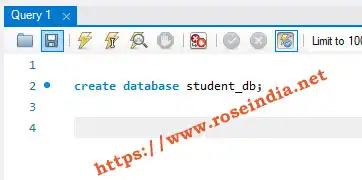
You should connect to your MySQL Database server using the MySQL Workbench and create the database using following query:
CREATE DATABASE IF NOT EXISTS student_db;
Here is the screenshot of creating database:
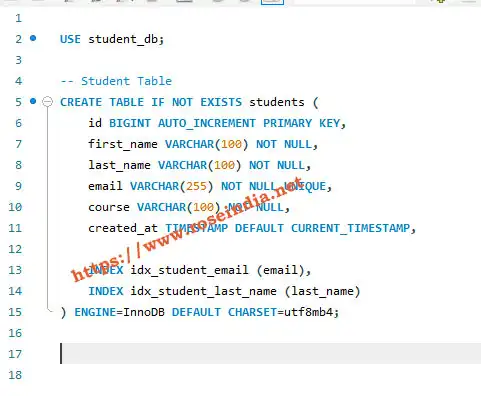
Now you should connect to your database and create table:
USE student_db;


-- Student Table

CREATE TABLE IF NOT EXISTS students (

    id BIGINT AUTO_INCREMENT PRIMARY KEY,

    first_name VARCHAR(100) NOT NULL,

    last_name VARCHAR(100) NOT NULL,

    email VARCHAR(255) NOT NULL UNIQUE,

    course VARCHAR(100) NOT NULL,

    created_at TIMESTAMP DEFAULT CURRENT_TIMESTAMP,


    INDEX idx_student_email (email),

    INDEX idx_student_last_name (last_name)

) ENGINE=InnoDB DEFAULT CHARSET=utf8mb4;
Here is the screen shot:
Here is the SQL Script for creating database, table and inserting sample data:
-- Student Management System Database Schema

-- Create database
CREATE DATABASE IF NOT EXISTS student_db;
USE student_db;

-- Student Table
CREATE TABLE IF NOT EXISTS students (
    id BIGINT AUTO_INCREMENT PRIMARY KEY,
    first_name VARCHAR(100) NOT NULL,
    last_name VARCHAR(100) NOT NULL,
    email VARCHAR(255) NOT NULL UNIQUE,
    course VARCHAR(100) NOT NULL,
    created_at TIMESTAMP DEFAULT CURRENT_TIMESTAMP,

    INDEX idx_student_email (email),
    INDEX idx_student_last_name (last_name)
) ENGINE=InnoDB DEFAULT CHARSET=utf8mb4;

-- Sample Data
INSERT INTO students (first_name, last_name, email, course) VALUES
('John', 'Doe', '[email protected]', 'Computer Science'),
('Jane', 'Smith', '[email protected]', 'Mathematics'),
('Michael', 'Johnson', '[email protected]', 'Physics'),
('Emily', 'Williams', '[email protected]', 'Chemistry'),
('David', 'Brown', '[email protected]', 'Engineering');
Above is the complete query for creating database, using database, creating table and inserting sample data. After completion of this tutorial you have database ready for development.
In this section we have:
a) Created database
b) Created table
c) Inserted sample data into the table
Now we are ready for the next step. In the next Step we will import the Student Management System Project in Eclipse IDE for development.
Related Tutorial: