
How to design a weeping sun
Have you ever seen weeping sun, no! Get ready to make this effect in the photoshop by using this example.
New File: Take a new file with appropriate size.
Gradient Overlay: I have used Gradient overlay effect to make a effect able background for this tutorial. Go to Layer Menu > Layer Style > Gradient Overlay and use these settings.
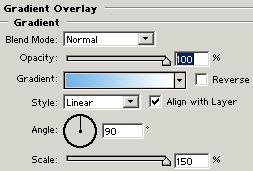
You will get it.

Ellipse Tool: Choose Ellipse Tool (U key) and draw a circle with selected "F2EC85" color.

Bevel and Emboss: Go to Layer Menu > Layer Style > Bevel and Emboss and use same adjustment.
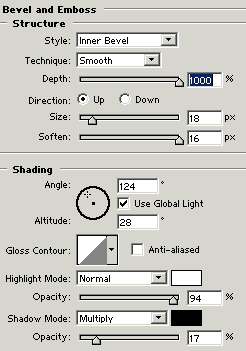
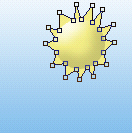
Pen Tool: Choose Pen Tool (P key) and point to make rays of the sun
Gaussian Blur: Go to Filter Menu > Blur > Gaussian Blur and adjust the setting as looking below
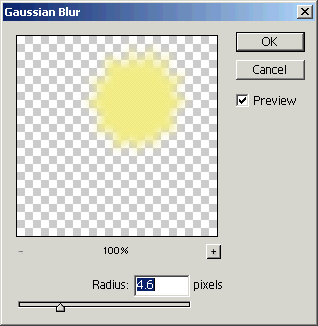
Your image will look like this.

Brush Tool: Choose Brush size 1 with black color to make eyebrow and nose as here.

Ellipse Tool: Choose Ellipse Tool (U key) and a little circle like eyes with black color.

Choose again ellipse tool with white color to make tears.