
Downloading and Installing WebLogic server 6.0


This tutorial shows you how to Install Web Logic 6.1 Server on windows machine. You can download the BEA WebLogic Server for http://www.bea.com to test and run the examples described in this tutorial. BEA WebLogic Server?, is world class Web and Wireless Application Server. It delivers scalability, flexibility, and reliability. BEA WebLogic Server's trial version is available and it you can download it from the BEA's Download Center: http://commerce.bea.com/.
Installation of the WebLogic 6.0 is cool and only you have to do is to double click it and it will start installing the software. Follow the installation instruction and install the software.
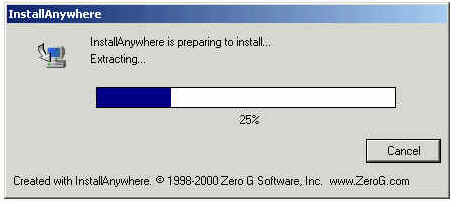
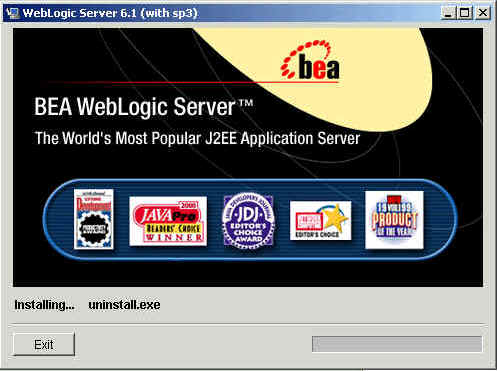
Download the weblogic610sp3_win.exe from http://www.bea.com. To start the installation double click on the weblogic610sp3_win.exe file. This will start the InstallAnywhere installer as shown below.
Installer will display Installation wizard as show below.
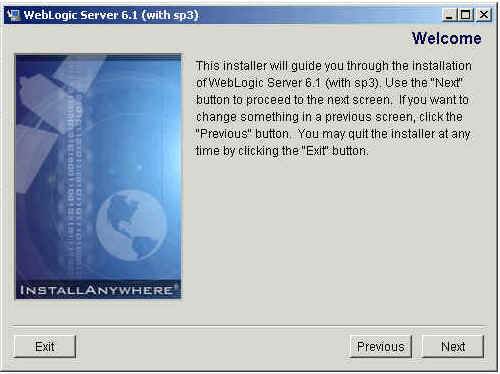
Click on the Next button. License Agreement page.
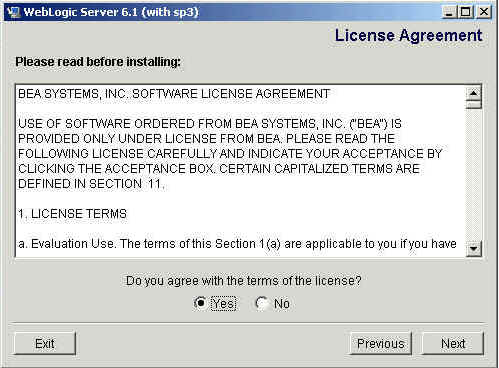
Select "Yes" and then click on Next button.
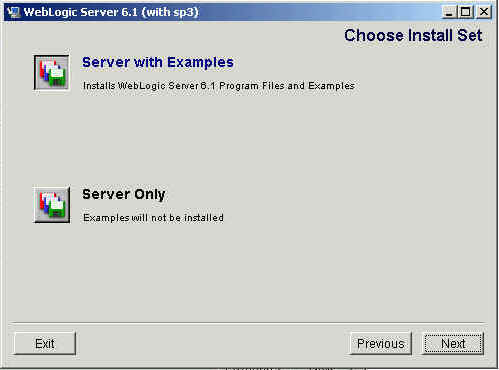
On the above screen leave "Sever with Examples" selected and click on the next button.
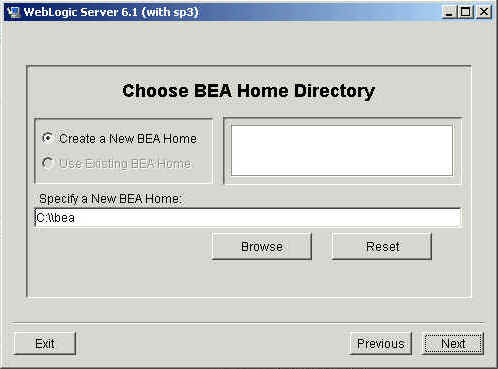
Leave BEA home directory "C:\\bea" abd Click on the next button.
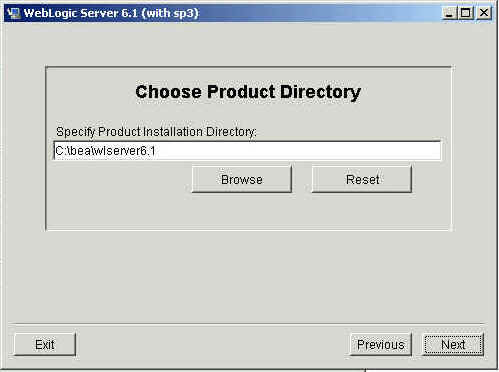
Leave the default values and click on the next button on the above "Choose Product Directory" dialog box.
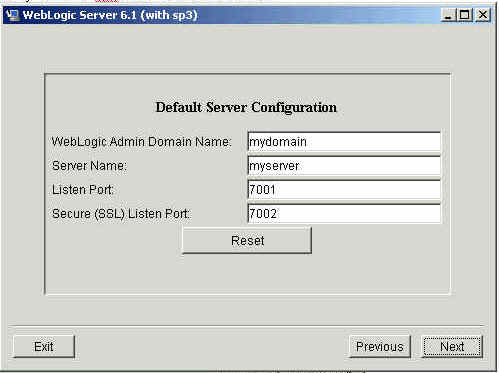
Leave the default values and click on the next button.
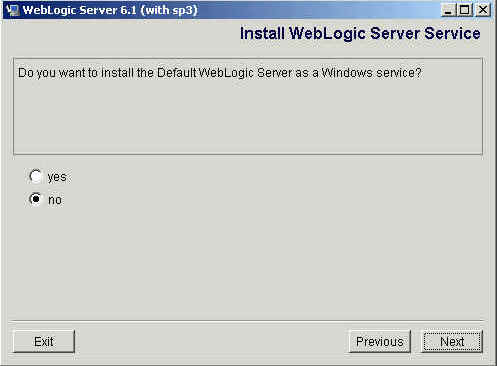
Leave the default selection ( as we don't want the Bea to run as service) and click on the next button.

Enter password "system123" and click on "Install" button. This will start the weblogic installation.
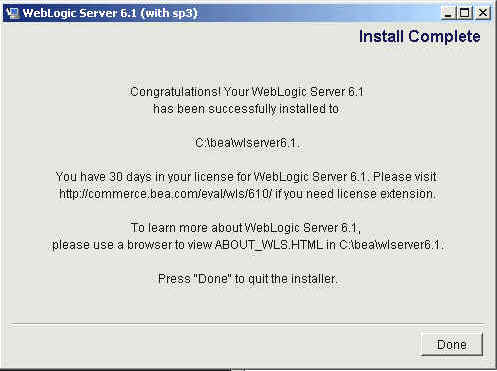
Once the installation is completed, it installer will display the "Install Complete" confirmation window. Click on the "Done" button to exit the installer.
To run it go to the start menu --> Programs --> BEA WebLogic E-Business Platform--> Start Default Server. It will ask the password, type the password that you provided during the installation and then press 'Enter Button'. It will start the WebLogic Server. To check it open your browser and the key in "http://localhost:7001" and this will show the welcome page.
To start the Administrative consol of weblogic type "http://localhost:7001/console". This will ask you the user and password, give 'system' as user and the password of the weblogic server. Now explore the administrative console yourself.
Tutorials
- Java 26 (JDK 26) Features with examples
- Top 10 Reasons to Learn Java in 2026
- JDK 26 Tutorial
- Java Certification Roadmap 2026: Which Oracle Certs Matter
- Install JDK 26: A Complete Beginner's Guide (2026)
- What Is Java? A Complete, Up-to-Date Guide for 2026
- Java 26 HTTP3 tutorial - HTTP 3 support in JDK 26 - How to use HTTP/3 in Java 26 application?
- JDK 28 Preview: Value Objects, Shenandoah GC & JSON API
- Java Tutorials