--Ads--
Dojo Dialog Box


In this section, you will learn about the dialog box
with tool tips and how to create it in dojo.
Try Online: Dialog
Box
Dialog Box : Dialog box is a rectangular GUI box
that either requests or provides information. Some dialog boxes present warnings
and options to choose from before windows can carry out a command. In dialog box
users can entered your information.
Here is the code of Program:
<html>

<head>

<title>TooltipDialog demo</title>

  <style type="text/css">

  @import "../resources/dojo.css";

  @import "../dijit/themes/tundra/tundra.css";


  </style>

  <script type="text/javascript" src="dojo.xd.js"

  djConfig="parseOnLoad: true"></script>


  <script type="text/javascript">

 dojo.require("dojo.parser");

 dojo.require("dijit.form.Button");

 dojo.require("dijit.Dialog");

 dojo.require("dijit.form.TextBox");

 function checkPw(dialogFields) {

  if (dialogFields.confirmpw != dialogFields.newpw)

 alert("Confirmation password is different.");

 }

 </script>

</head>

<body class="tundra">

  <div dojoType="dijit.form.DropDownButton">

  <span>Login Form</span>

  <div dojoType="dijit.TooltipDialog" id="dialog1"

    title="Login Form" execute="checkPw(arguments[0]);">

  <table>

  <tr>

  <td><label for="name" title="User name">

       Username</label></td>

  <td><input dojoType="dijit.form.TextBox"

       type="text" name="oldpw"></td>

  </tr>

  <tr>

  <td><label for="loc">Password: </label></td>

  <td><input dojoType="dijit.form.TextBox"

       type="password" name="newpw"></td>

  </tr>

  <tr>

  <td><label for="desc">Confirm Password: </label></td>

  <td><input dojoType="dijit.form.TextBox"

      type="password" name="confirmpw"></td>

  </tr>

  <tr>

  <td colspan="2" align="center">

  <button dojoType="dijit.form.Button"

     type="submit">Login</button></td>

  </tr>

  </table>

  </div>

  </div>

</body>

</html>
|
Output of the
Program:
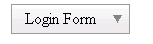
When you click the following button then you get:
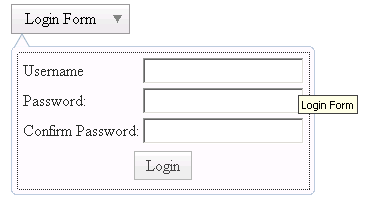
Again, fill the following dialog:
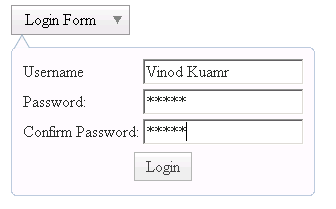
After clicking the "Login" command button you
get:

Try Online: 
