
Generative Artificial Intelligence Training - Installing Python and VS Code
First of all, it is necessary to set up a development environment on Windows 11 desktop (or your favourite OS) and learn to write code in Visual Code. We are going to use the Python programming language to make all samples and end-to-end programs, so we will first teach you to set up your development environment. There are many IDEs available for the development and testing of Python projects. Visual Studio code is one of most used, feature rich and easy to learn application development IDE. So, let's get started and set up our development environment.
In this tutorial we are going to install Anaconda Python and after that install Visual Studio code.
Installing Anaconda Python on Windows 11
Visit the official website of Anaconda Python and download installer exe file for Windows as shown below:
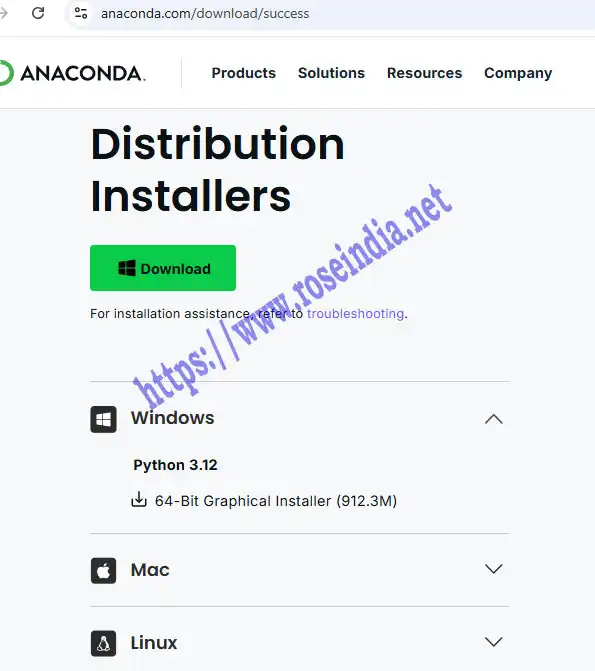
After completion of the download double click on the exe file and install Anaconda Python. You can follow all the steps as described in the video below:
To check the Python installation open command prompt and type:
conda --version
Above command will display the version of conda installed on your computer.
Install Visual Studio Code
Visual Studio Code is a powerful free IDE which can be used by the Python developers. In these training sessions we will be using Visual Studio Code IDE for application development. Search download Visual Studio code in Google search and you will find the latest link to download the latest version of Visual Studio code. Click on the download link to download visual studio installer as shown below:
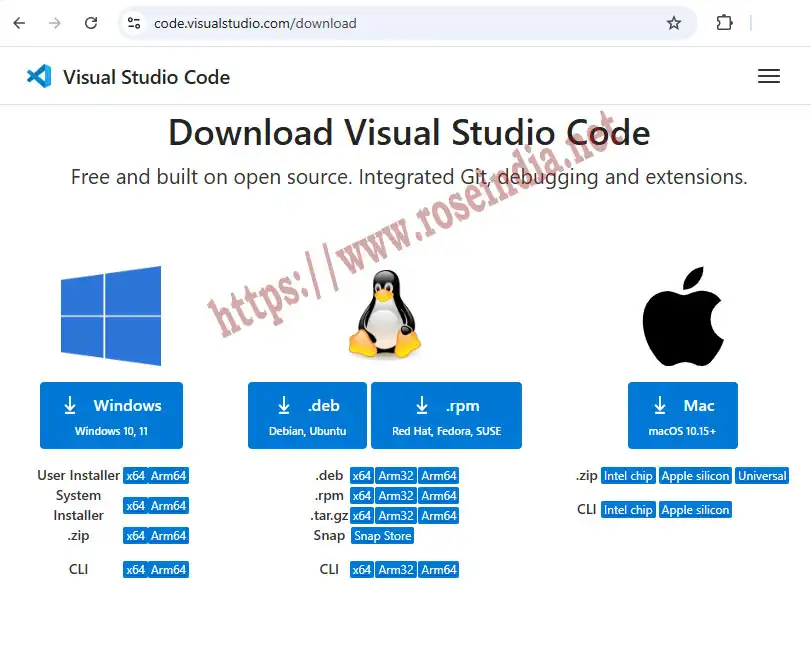
Click on the download link to download installer file for Windows operating system. Once file is downloaded double click on the exe file to start installer. Follow the steps and complete the installation process.
In the video above we have explained you all the process and also showed you how to create Python program in Visual Studio Code IDE. We have also shown you the steps to run the Python program.
Check more tutorials at AI Tutorials section.