
Install and use DeepSeek-R1 Locally
DeepSeek-R1 is an open source, free reasoning model that can be installed and run locally on the desktop. The DeepSeek-R1 was recently released on 20th Jan 2025 and is now making buzz in the Generative AI world. In this post we are going to learn how to download, install and use the DeepSeek-R1 model locally on Laptop/Desktop. I have tested this model on the i7 6th Generation Intel CPU based laptop and it worked, although the response was slow. Let's get started and learn the steps to install and use the DeepSeek-R1 model locally on laptop.
What is DeepSeek-R1 Reasoning Model?
DeepSeek R1 is an open-source reasoning AI model developed by Chinese AI startup DeepSeek and released under open MIT licence. This model was released on 20th January, 2025, which is the center of attraction as it is powerful and can be run on the desktop machines. This model is on par with the powerful OpenAI's o1 on multiple benchmarks, and giving good outputs.
The DeepSeek R1 model is trained to accomplish the tasks which require logical inference, mathematical problem-solving skills and more importantly the real-time decision-making capabilities. All these features make this model very useful and getting more attention in the AI world.
How to install DeepSeek R1 Locally?
In this following video tutorial I have showed you the steps to download, install and use the DeepkSeek R1 AI Reasoning model:
YOUTUBE_VIDEO_1
Step 1: Download and Install Ollama
We are going to run the DeepSeek-R1 Reasoning Model with Ollama. So, visit the official website at https://ollama.com/ and download the latest version for your operating system. I am using Windows 11, So I will download the exe file for windows. Here is the screenshot of the official website at the time of writing this tutorial:
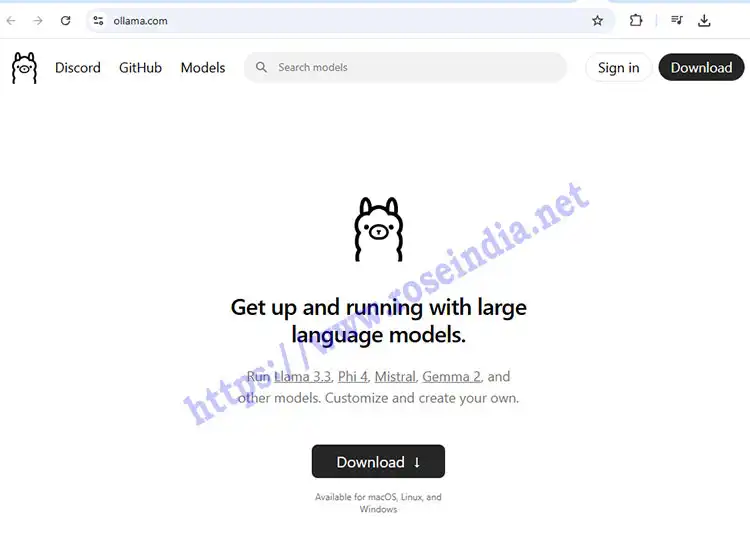
After downloading double click the exe file and install Ollama by following the installation wizard. Here is the screen shot of the Ollama installation wizard:

After installation you should check if Ollama is installed correctly or not. For this open the terminal and run ollama command as shown below:

Step 2: Run DeepSeek-R1 Model
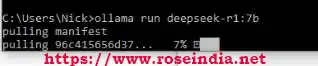
There are many ways you can run DeepSeek-R1 Model in your Desktop. For this tutorial I will use Ollama for running this model. In the terminal run following command:
ollama run deepseek-r1:7bHere is the screenshot of the above command:
Step 3: Testing Mode
The next step is to test the model by ask something to do. I will ask "How to make tea?" to the model. Here is the response from the model:
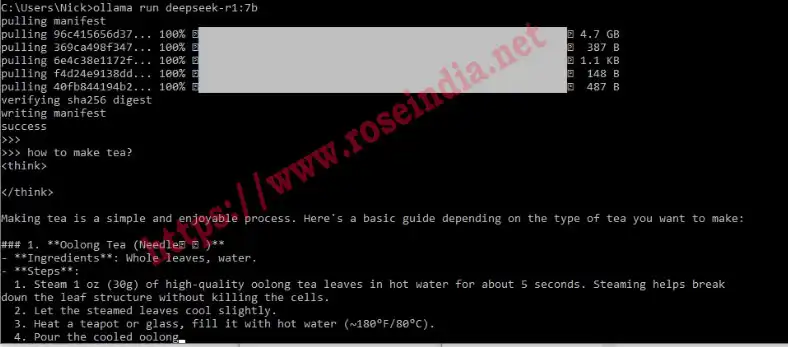
Model response was fast and can be used on the Desktop machines.
In this tutorial we have shown you the steps to install and use DeepSeek R1 model on the desktop machine.
Related Tutorials