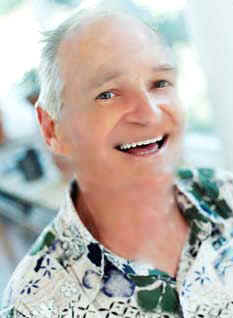
How to convert a old face to young face


This is very interesting example because I am going to convert old face of the young face, you can also make it by using some steps that are mentioned in this example.
Let's start...
Take an Image: First we have to open an old person picture to make young face.

Healing Brush Tool: Select Healing Brush Tool (J key) and hold Alt key and click on smooth area of the face then scroll mouse on the wrinkled area of the face as I have done here.


Clone Stamp Tool: First we have make setting of clone stamp then select Clone stamp tool (S key) and take color from any where on the face with holding Alt key and scroll mouse pointer as shown down.


Use Healing Brush tool again as used up.

Smudge Tool: Select now Smudge Tool (R key) and make setting as given below, After selection scroll your mouse pointer on the face.


You will get this result.