How to design a color tray


This is a design of the color tray which we used during the painting, it will surely help you to design a color tray. Apply every step of this example, I hope you will make it.
New File: Take a new file and adjust the size as required for design a color tray.
Rounded Rectangular Tool: Choose Rounded Rectangular Tool (U key) and draw a rounded rectangular shape with "D5D5D5" color.

Effects: Go to Layer Menu > Layer Style > Stroke, Drop shadow, Bevel and Emboss and use these settings as given below.

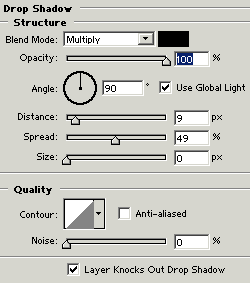

After using effect, you will get it.

Ellipse Tool: Choose Ellipse Tool (U key) and draw a circle with "FDD44F" color.

Effects: Go to Layer Menu > Layer Style > Drop Shadow, Bevel and Emboss, Stroke and make setting as given below.


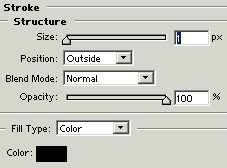
Your image should be similar.

Add Another Color: Make duplicate layer and set it but. The color should be changed as here.

Use same upper step until you have this image

