Core Java| JSP| Servlets| XML| EJB| JEE5| Web Services| J2ME| Glossary| Questions?


Search Tutorials

Latest Questions
Comments
 
Web Service 
 

In this example program I will show you how you can make webservices in the Netbeans IDE.


Web Services with NetBeans IDE


Creating webservices in NetBeans.

In this example program I will show you how you can make webservices in the Netbeans IDE. NetBeans IDE provides necessary GUI Tool to help the developers to quickly develop and deploy web services.

In this example we will

a) Develop webservices

b) Test the webservice

c) Develop client and call the webservice there

d) Finally deploy and test the application

Web Service can be added in a Web project or in Ejb project. Netbeans IDE helps the developers to easily develop and test the webservices. It’s easy to make the Web Service program in Netbeans, which has Glassfish server by default.

Web Service program in Web Project
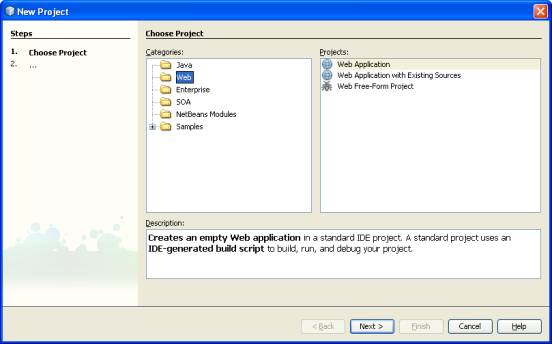
In Netbeans take new web project in figure 1
Web Services Example
                                                       Figure 1


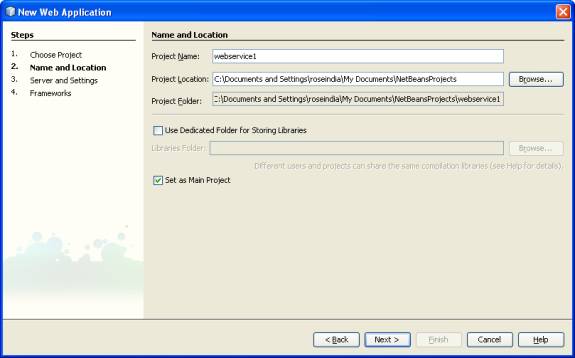
Give project name       webservice1 as shown in figure 2  
 

Web Services Example
                                                          Figure 2


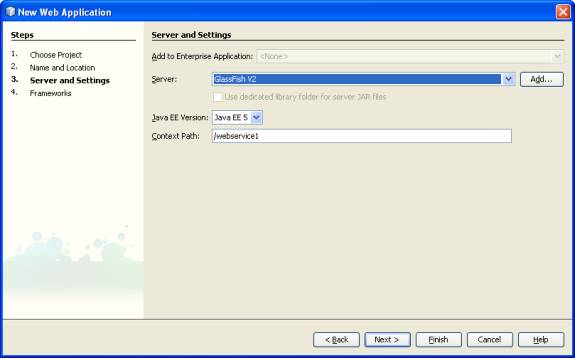
Select the server name in figure 3
Web Services Example
                                                               
                                                               Figure 3


Now Rt Click on the Web Service project  in figure 4

Select New->WebService
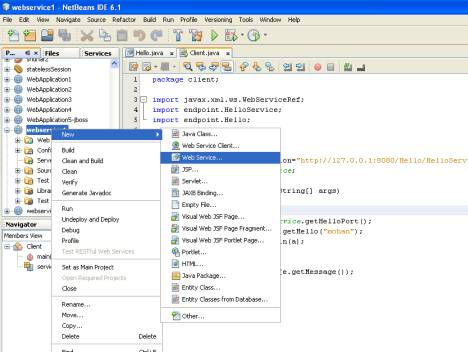
Web Services Example

                                               Figure 4


Now give the name of the Web Service and package name  figure 5
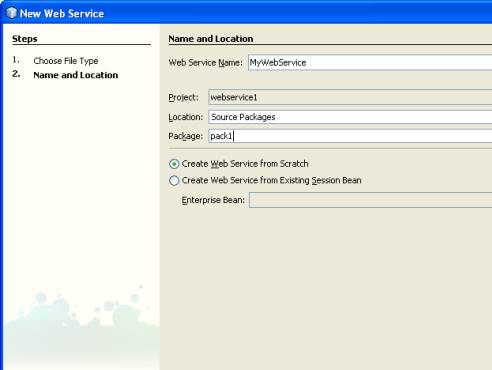
Web Services Example
                                                                   Figure 5

Now In design view of Web Service  click on Add Operation  in figure 6
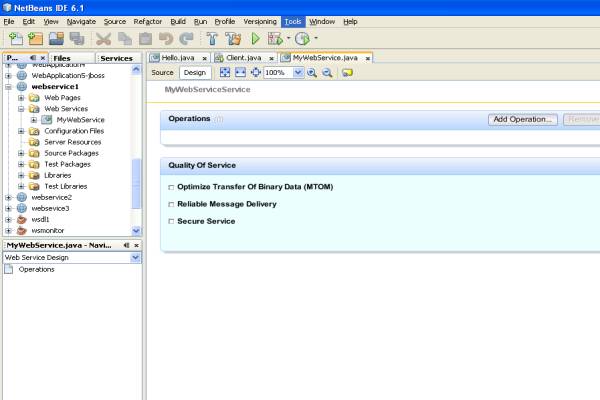
Web Services Example
                                                            Figure 6

Here  give the operation name and parameter name and type as shown  in figure 7
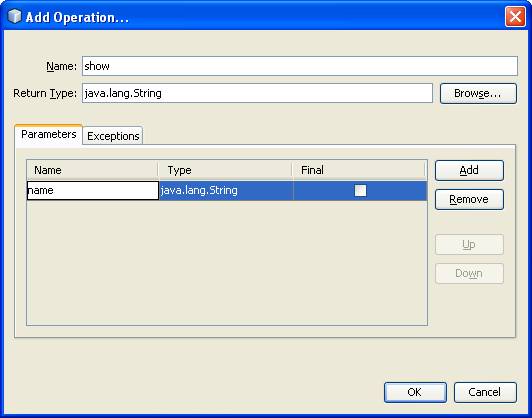
Web Services Example   

                                                         Figure 7                                                                                   


Now in source view change the return null to return “hello ”+name as in figure 8
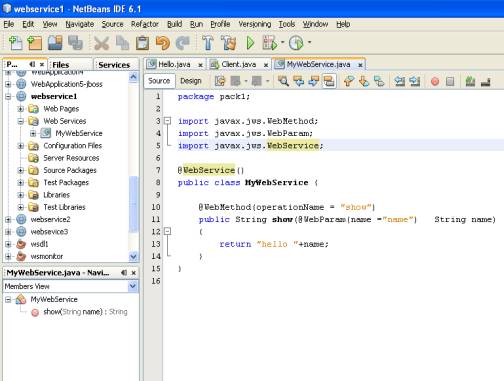
Web Services Example

                                                       Figure 8

Now Rt Click on the project and deploy it on the server  as in figure 9
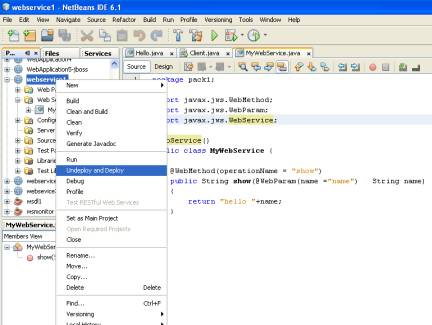
Web Services Example
                                                          Figure 9
It will deploy the war file on to the server
Now test the web service program
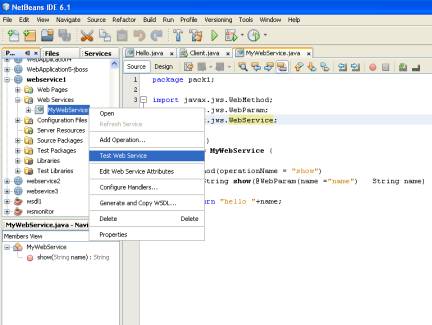
Rt click on the MyWebService in web services folder and select Test Web Operation as in figure 10

Web Services Example 

                                                  Figure 10

It will open the Web Service  program in browser as in figure 11
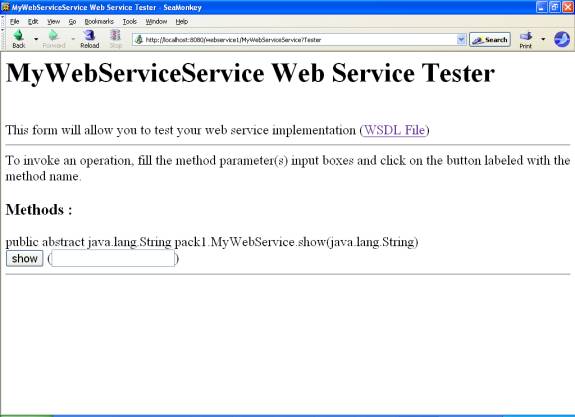
Web Services Example

                                                    Figure 11
Click on WSDL File in blue color .It will open the WSDL  file in the browser as in figure 12
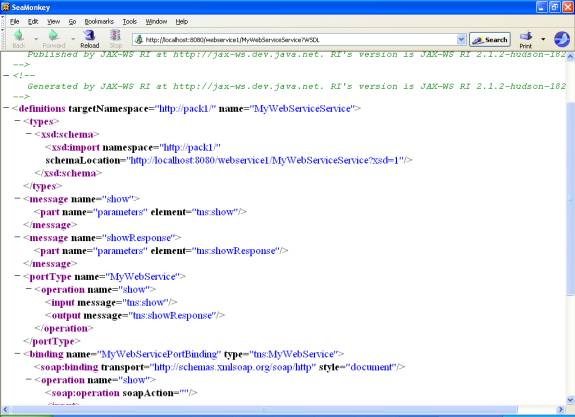
Web Services Example
                                                  Figure 12
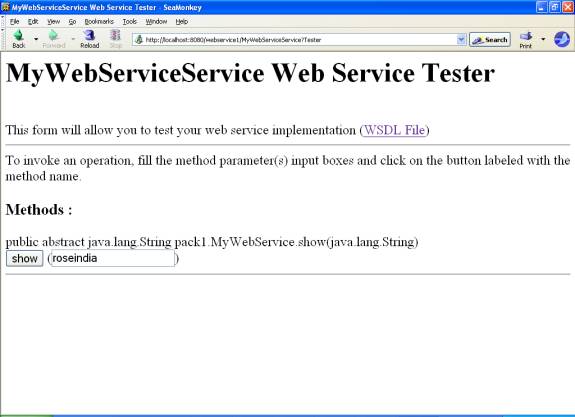
Now as in fig type the roseindia in the text field and click on show button  as in figure 13
Web Services Example
                                                 
                                                          Figure 13


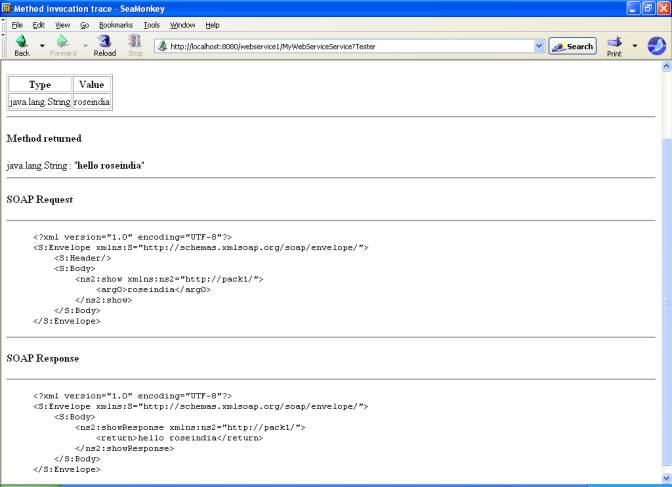
It will return hello roseindia
It also give the SOAP request and SOAP response  pf the Web Service  as in figure 14
 

Web Services Example
                                                   Figure 14


Now make the client file.Client file can be java servlet , jsp  and standalone java file
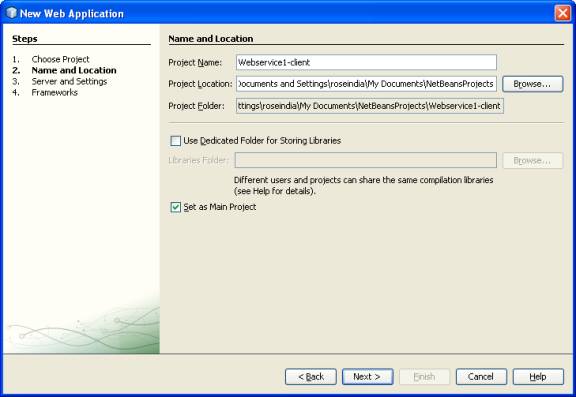
Start a new web project as in figure 15.
Give project name as Webservice1-client
Web Services Example
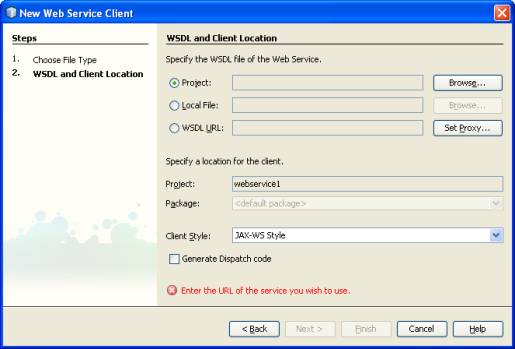
Now Rt. Click on the project select NewàWeb Service client

Here  now select the WSDL file of the Web Service as in figure 15
Click on the Browse.
Web Services Example

Now select the webservice1àMyWebService
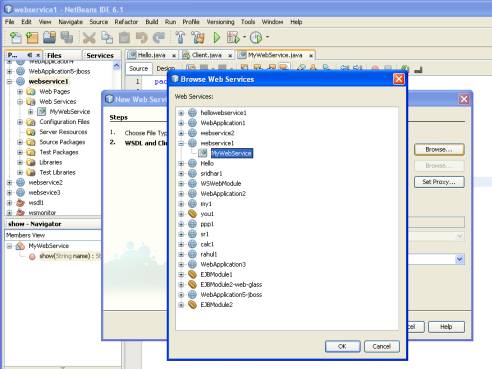
Web Services Example
                                               Figure 15

It creates the Client environments for the Web Service   in the given project
Now make a Client   file  by just taking a new Jsp file as in figure 16
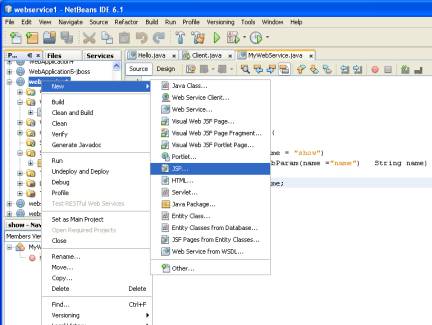
Web Services Example
                                 Figure 16


Give the file name as client.jsp
Rt click  in client.jsp file code  and select  Web Service Client resources -->Call Web Service  Operation in figure 17
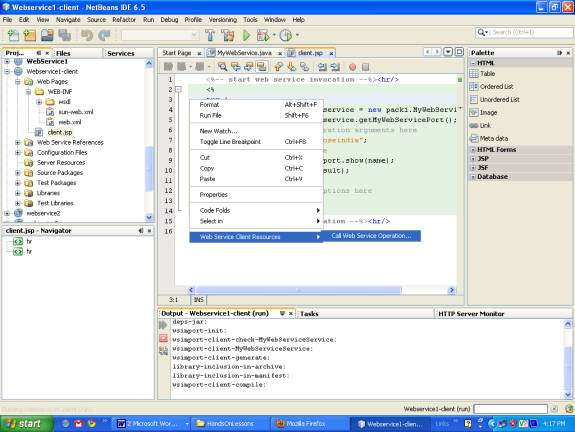
 

Web Services Example
                                
                                                            Figure 17

Select the web service project ->web service file->web service port->operation name  as in figure 18
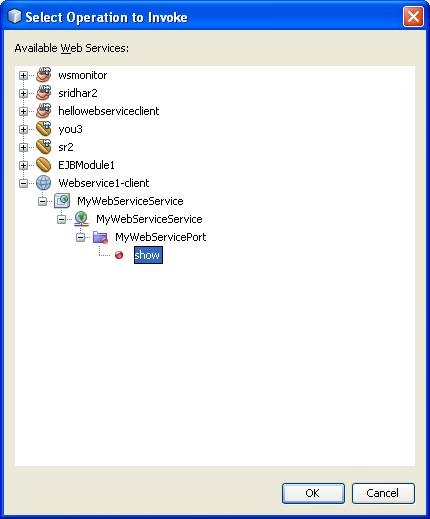
Web Services Example

                                           Figure 18
Change   the name =”null”  to  name=”roseindia”  as in figure 19
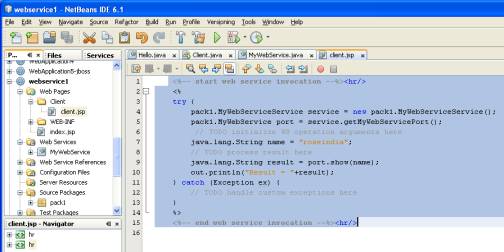
Web Services Example
                                                 Figure 19

Rt click in client.jsp and select run client.jsp
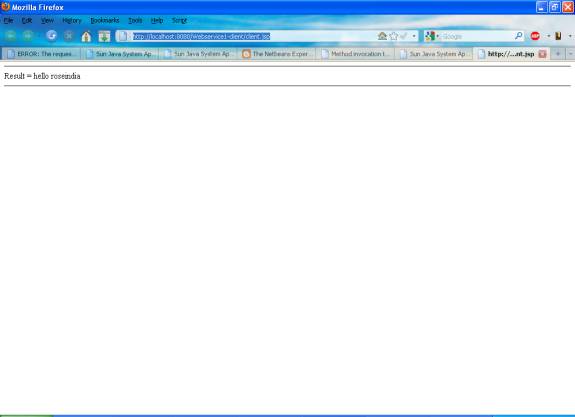
Web Services Example

Download Code

                         
» View all related tutorials
Related Tags: c gui web ide netbeans ui service help services vi deploy id tool developer oo beans to developers bean e

Leave your comment:

Name:

Email:

URL:

Title:

Comments:


Enter Code:

Audio Version
Reload Image
 

Note: Emails will not be visible or used in any way, and are not required. Please keep comments relevant. Any content deemed inappropriate or offensive may be edited and/or deleted.

No HTML code is allowed. Line breaks will be converted automatically. URLs will be auto-linked. Please use BBCode to format your text.

Add This Tutorial To:
  Del.icio.us   Digg   Google   Spurl   Blink   Furl   Simpy   Y! MyWeb 
Training Courses
Tell A Friend
Your Friend Name
Software Solutions
Least Viewed
Most Rated
Recently Viewed
Search Tutorials


Home | JSP | EJB | JDBC | Java Servlets | WAP  | Free JSP Hosting  | Search Engine | News Archive | Jboss 3.0 tutorial | Free Linux CD's | Forum | Blogs

About Us | Advertising On RoseIndia.net  | Site Map

India News

Indian Software Development Company | iPhone Development Company in India | Flex Development Company in India | Java Training Delhi | Java Training at Noida |

Send your comments, Suggestions or Queries regarding this site at roseindia_net@yahoo.com.

Copyright © 2008. All rights reserved.