
How to design a banner for no smoking message
When we want to convey a message to all the people then we need a banner for presentation. Here, I have tried to make a no smoking message banner. You will be able to learn it by the some simple steps given in this example, I hope you will like it.
Let's start.
New File: First take a new file and control the size of the file as your requirement.

Cigarette Shape: Choose white color and Rounded Rectangle Tool (U key). If you press U key but you don't get your required tool so press Shift key with arrow to change the tool in that category. After selection a tool draw a rounded rectangle shape.
Now go to Layer Menu > Layer Style > Stock = 1 with black color.

Back side of the Cigarette: Take again Rounded Rectangle tool (U key) with "ffcc66" color, make a shape rectangle shape inside the big rectangle shape.

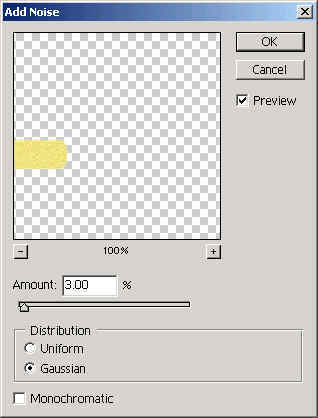
Add Noise: Go to Filter Menu > Noise > Add Noise and make setting as given below.
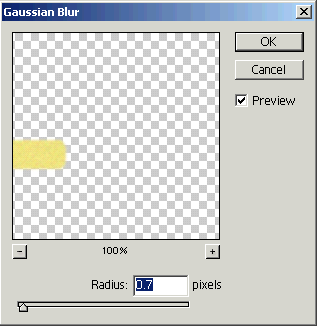
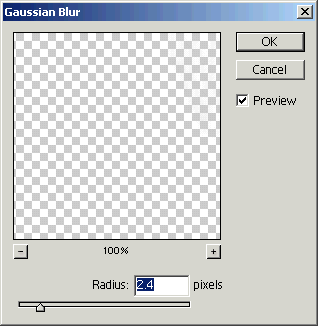
Gaussian Blur: Us gaussian blur to un sharp picture so go to Filter menu > Blur > Gaussian blur and set radius as given below.
Your image will look like this

Ellipse Tool: Choose "F42A41" color and Ellipse Tool (U key) then draw a circle. Make a right adjustment select Direct selection tool (A key) click on the surface of the circle and make adjustment like this.

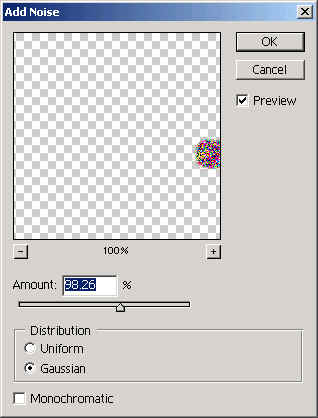
Effect: To make burn cigarette Go to Filter menu > Noise > Add noise use settings as here.
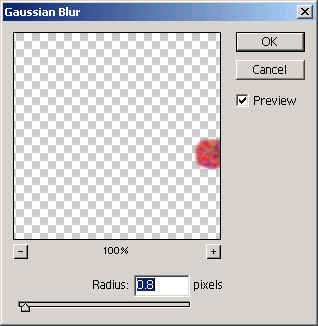
Effect: Go to Filter menu > Blur > Gaussian blur and apply settings.
You done is here.

Pencil Tool: Now make fumes, select pencil tool (B key) set this setting and draw some lines on the burnt area to look real.

Gaussian blur: Go to Filter menu > Blur > Gaussian blur to make un sharp line.
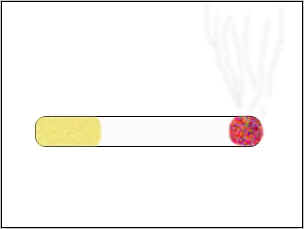
The cigarette will look like this.
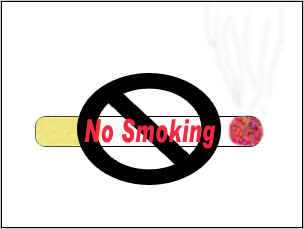
Insert a symbol: Select Custom Shape Tool (U key) and choose as stop symbol then draw on the cigarette as I have done here. 0


Write Text: You can take any color to write message but I have taken here "F42A41" color, choose Text tool (T key) and write message on the circle as I have done here. 1

 2
2