How to design a little game
In this example we are going to design a little game which is used by the children easily.
New File: Take a new file with appropriate size.
Rounded Rectangle Tool: Choose Rounded Rectangular Tool (U key) and draw a shape with selected any color as you like.
Stroke: Go to Layer Menu > Layer Style > Stroke, set black color and size 1.
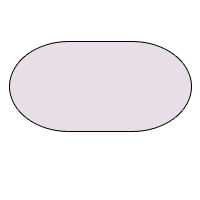
Gradient Overlay: Go to Layer Menu > Layer Style > Gradient Overlay and use settings.
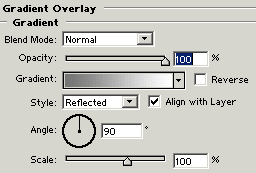
Your image should be similar.
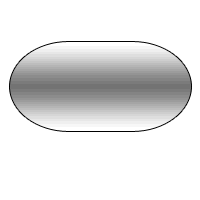
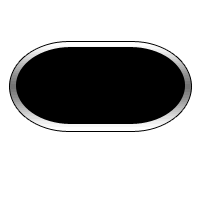
Rounded Rectangle Tool: Choose Rounded Rectangle Tool (U key) and draw a shape with black color inside the rounded rectangle shape. as given here.
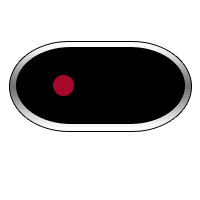
Ellipse Tool: Choose Ellipse Tool (U key) to make button, draw a circle shape with selected "A50C2D" color.
Bevel and Emboss: Go to Layer Menu > Layer Style > Bevel and Emboss and use settings
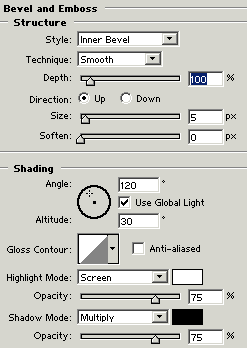
You will get it.

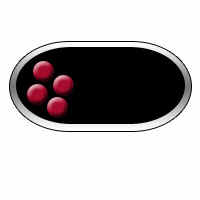
Draw another: Make duplicate button layer three times and set them as here..
Big Button: Select on button layer, hold Alt key and scroll mouse right side. Now press Ctr + T and increase size as I have done here.
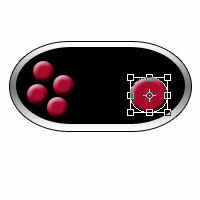
Make duplicate button layer and decrease size but button should be changed as here "A50C2D" to "5088E4".

Ellipse Tool: Choose Ellipse Tool and draw shape with "D0D0D0" color.

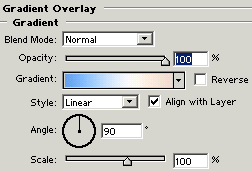
Gradient Overlay: Go to Layer Menu > Layer Style > Gradient Overlay and use settings.
You will get it.