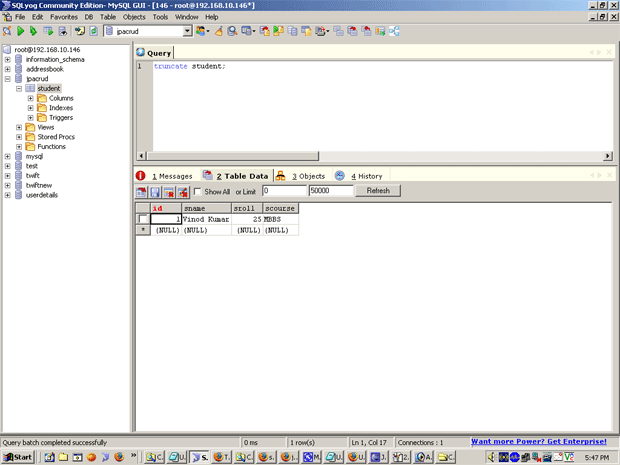
Creating and running the JPA CRUD application


In this section we will show you how to develop different project artifacts for JPA CRUD demo example code.
After completing the steps discussed in this section you will able to create and execute the CRUD demo application.
Following the following steps to create the JPA CRUD demo application.
Creating and setting up the database| CREATE DATABASE jpacrud;
CREATE TABLE `student` ( |
Add the jar files discussed in the previous section in the project library.
Persistence Manager configuration (persistence.xml)
|
<?xml version="1.0" encoding="UTF-8"?> <persistence> <persistence-unit name="jpa"> <provider>org.hibernate.ejb.HibernatePersistence</provider> <class>roseindia.Student</class> <properties> <property name="hibernate.connection.url" value="jdbc:mysql://192.168.10.146/jpacrud"/> <property name="hibernate.dialect" value="org.hibernate.dialect.MySQLDialect"/> <property name="hibernate.connection.driver_class" value="com.mysql.jdbc.Driver"/> <property name="hibernate.connection.password" value="root"/> <property name="hibernate.connection.username" value="root"/> <property name="hibernate.hbm2ddl.auto" value="update"/> <property name="hibernate.show_sql" value="true"/> <!-- <property name="hibernate.format_sql" value="true"/> --> </properties> </persistence-unit> </persistence> |

Put the following text:

Creating Model "Student.java"
| package roseindia; import javax.persistence.Column; import javax.persistence.Entity; import javax.persistence.GeneratedValue; import javax.persistence.Id; import javax.persistence.Table; @Entity @Table(name="student") public class Student { @Id @GeneratedValue private int id; /** * @return the id */ public int getId() { return id; } /** * @param id the id to set */ public void setId(int id) { this.id = id; } @Column(name="sname", length=100,nullable=false) private String sname; /** * @return the sname */ public String getSname() { return sname; } /** * @param sname the sname to set */ public void setSname(String sname) { this.sname = sname; } @Column(name="sroll",nullable=false) private int sroll; /** * @return the sroll */ public int getSroll() { return sroll; } /** * @param sroll the sroll to set */ public void setSroll(int sroll) { this.sroll = sroll; } @Column(name="scourse",length=10,nullable=false) private String scourse; /** * @return the scourse */ public String getScourse() { return scourse; } /** * @param scourse the scourse to set */ public void setScourse(String scourse) { this.scourse = scourse; } } |
Create a "JPACreate" class file
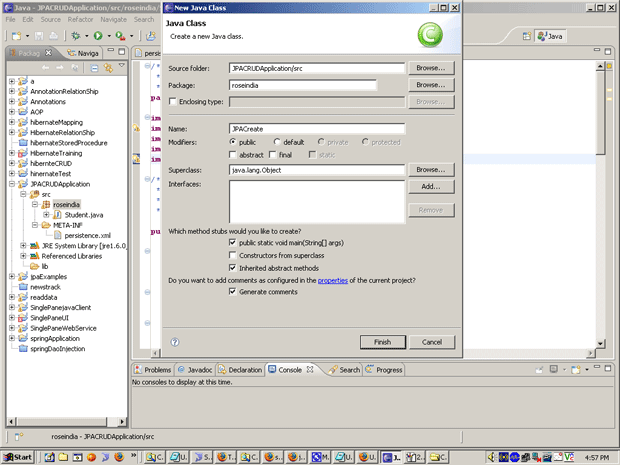
Put the following text in "JPACreate.java" file.

Creating Add code and testing the add code. "JPACreate.java"
| /** * */ package roseindia; import javax.persistence.EntityManager; import javax.persistence.EntityManagerFactory; import javax.persistence.Persistence; import roseindia.Student; /** * @author Administrator * */ public class JPACreate { /** * @param args */ public static void main(String[] args) { // TODO Auto-generated method stub EntityManagerFactory emf = Persistence.createEntityManagerFactory("jpa"); EntityManager em = emf.createEntityManager(); try{ em.getTransaction().begin(); Student st = new Student(); st.setSname("Vinod Kumar"); st.setSroll(25); st.setScourse("MBBS"); em.persist(st); em.getTransaction().commit(); } catch(Exception e){ System.out.println(e.getMessage()); } finally{ em.close(); } } } |

Open "Run" dialog box on the screen. Select your project and main class file.

Click on "Run" button. You get an output in "Console window" of eclipse.

Go in mysql and check.