
To compile and run a java program we need to install java platform. JDK (Java Development Kit). JDK is the basic set of tools required to compile and run java programs. This section enables you to download JDK and teaches you the steps to install it.

Download and Install Java


To compile and run a java program we need to install java platform. JDK (Java Development Kit). JDK is the basic set of tools required to compile and run java programs. This section enables you to download JDK and teaches you the steps to install it.
New version of JDK is JDK 7, we have developed the tutorial on how to install JDK 7 on windows 7. View the tutorial Installing Java (JDK 7) on Windows 7 Computer Video Tutorial for more information and steps to download and install JDK 7. There are many new features available with the JDK 7, so you should start using JDK 7 for the development and deployment of your next applications.
Download and Install JDK (Java Development Kit)
The latest version of jdk is 6 (update 1) at the time of writing the tutorial. You can download the latest version of jdk from http://java.sun.com/javase/downloads/index.jsp. Once you download the exe file you can now install it. Just follow as mentioned:
To install the jdk, double click on the downloaded exe file (jdk-6u1-windows-i586-p.exe)
Step 1. Double Click the icon of downloaded exe.

Here is the video tutorial of: "How to download JDK 1.6?"
You will see jdk 6 update 1 window as shown below.
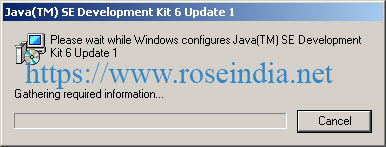
Java installer is very easy and you can follow the steps and easily install the Java on your computer. Java installer will ask you the directory for installing the Java. It will display the default Java installation directory and also give you option to browser the other directory in your computer.
After the installation of Java you have to set the path and classpath variables in the system path to use the Java SDK. In this tutorial we will show you how to set these environment variables.

Step 2: Now a "License Agreement" window opens. Just read the agreement and click "Accept" button to accept and go further.

Step 3: Now a "Custom Setup" window opens.
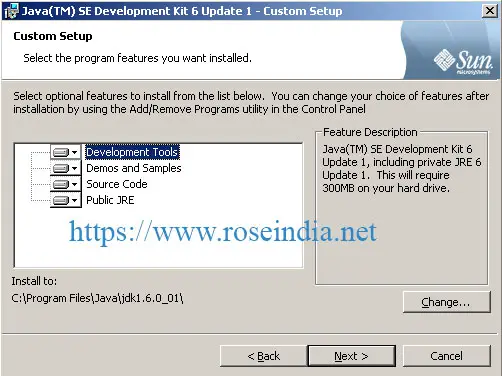
Step 4: Click on "Change" button to choose the installation directory. Here it is "C:\Program Files\ Java\jdk1.6.0_01". Now click on "OK" button.

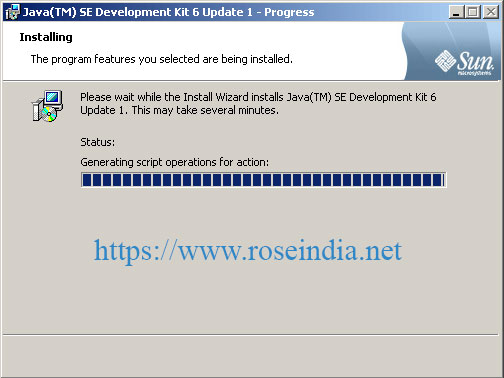
Clicking the "OK" button starts the installation. It is shown in the following figure.

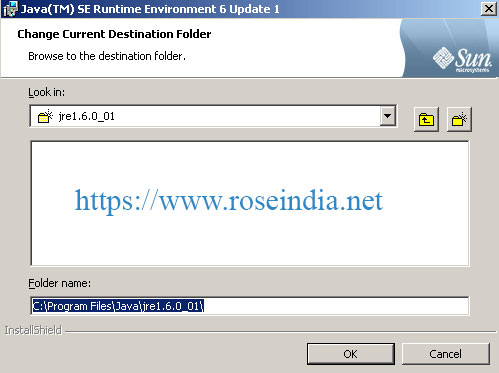
Step 5: Next window asks to install Runtime Environment.

Click the "Change" button to choose the installation directory of Runtime Environment. We prefer not to change it. So click "OK" button.
 0
0
Step 6: Click "OK" button starts the installation.

Step 7: Now "Complete" window appears indicating that installation of jdk 1.6 has completed successfully. Click "Finish" button to exit from the installation process. 1

Step 8: The above installation will create two folders "jdk1.6.0_01" and "jre1.6.0_01" in "C:\ Program Files\ java" folder.
 2
2
Step 9: To make available Java Compiler and Runtime Environment for compiling and running java programs , we set the system environment variables.
First of all select "My Computer" icon and right click the mouse button. Now click on "system Properties" option. It provides the "System Properties" window , click the 'Advanced' tab. Then Click the "Environment Variables" button. It provides "Environment Variables" window. Now select the path in System variables and click 'Edit' button. The"Edit System Variable" window will open. Add "c:\Program Files\Java\jdk1.6.0_01\bin" to 'variable value' and click 'Ok', 'Ok' and 'Ok' buttons.
 3
3
Step 10: Now set the JAVA_HOME variable and set its value to " C:\Program Files\Java\jdk1.6.0_01 ". If this variable has not been declared earlier then create a new system variable by clicking on "New" button and give variable name as "JAVA_HOME" and variable value as " C:\Program Files\Java\jdk1.6.0_01 ". Now click "OK". This variable is used by other applications to find jdk installation directory. For example, Tomcat server needs "JAVA_HOME" variable to find the installation directory of jdk.

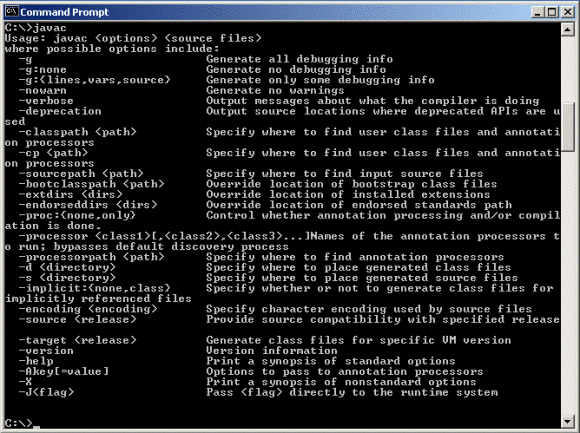
Step 11: Now this is the final step to check that you have installed jdk successfully and it is working fine. Just go to the command prompt and type javac and hit enter key you will get the screen as shown below : 4
Now you can create, compile and run java programs. Back to Learn Java in a day tutorial home page.