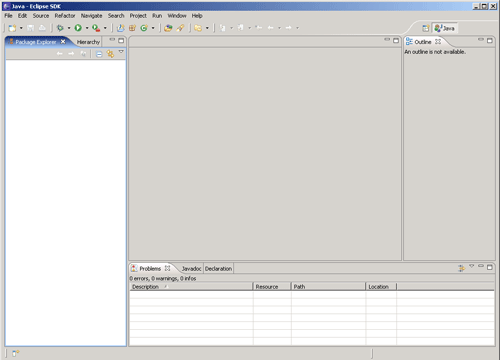
Downloading, Installing and Initializing Eclipse


To use Eclipse in your system, it is required to download its appropriate copy along with java runtime environment.
Downloading Eclipse:
Eclipse can be obtained from eclipse?s home page http://www.eclipse.org/downloads/ index.php. Download the latest release of eclipse as .zip file named as ?eclipse-SDK-3.2.2-win32.zip?.
Installing Eclipse:
Unzip the downloaded file into the directory of your choice (C:\eclipsewin32).This
creates another folder named eclipse containing all the
unzipped
files and folders. This is first installation step for
Eclipse.
Initializing Eclipse:
Running eclipse requires following steps:
1. Double Click the ?eclipse.exe? file in the eclipse folder.
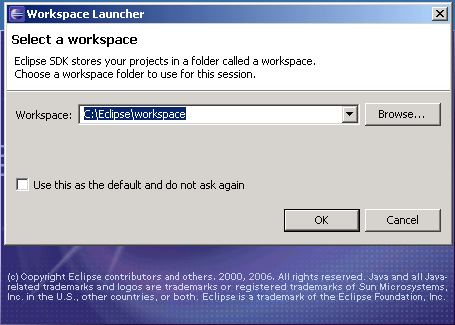
2. Now it will ask to specify a workspace to use (C:\Eclipse\workspace). Press OK to continue.
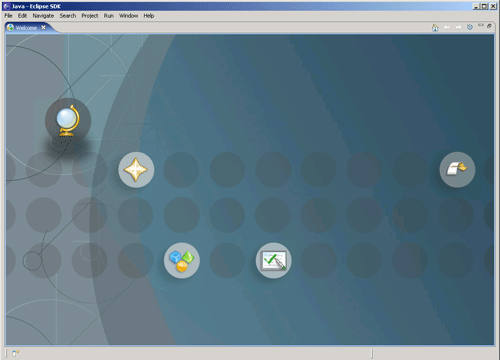
3. If Eclipse has been opened first time with this workspace then a welcome screen is opened. Rolling over the icons provides you help facilities. Click on arrow like icon on the right side of the screen.
4. Clicking on the arrow like icon opens a blank eclipse window.