Spark Move Effect in Flex4
The component move from one point to another point by using Move effect.
The component move from one point to another point by using Move effect.Spark Move Effect in Flex4:
The component move from one point to another point by
using Move effect. You will set the xFrom, yFrom, xTo, yTo, xBy and yBy property
for moving a component.
The tag of Move effect is <s:Move>. The Move effect uses the following syntax:
<s:Move
id="ID"
xFrom="val"
yFrom="val"
xTo="val"
yTo="val"
xBy="val"
yBy="val"
duration="val"
/>
In this example you can see how we can use a Move effect With components.
Example:
|
<?xml version="1.0" encoding="utf-8"?> <s:Application xmlns:fx="http://ns.adobe.com/mxml/2009"xmlns:s=" library://ns.adobe.com/flex/spark"xmlns:mx=" library://ns.adobe.com/flex/mx"minWidth=" 955" minHeight="600"> <fx:Declarations> <s:Bounce id="bounceEasing"/> <s:Move id="moveRight"xFrom=" 4"xTo=" 450"duration=" 2000"easer=" {bounceEasing}"target=" {vbox}"/> <s:Move id="moveLeft"xFrom=" 450"xTo=" 4"duration=" 2000"easer=" {bounceEasing}"target=" {vbox}"/> </fx:Declarations> <s:Panel title="Spark Move effect Example"chromeColor=" #000000"color=" #CCCCCC"width=" 602"height=" 186"> <mx:ApplicationControlBarwidth=" 600"horizontalAlign=" center"> <s:Label text="Click on Buttons for showing the effect"color=" #000000"fontFamily=" Verdana"/> </mx:ApplicationControlBar> <mx:VBox id="vbox"width=" 136"height=" 81"horizontalAlign=" center"verticalAlign=" middle"x=" 4" y="47"backgroundColor=" #555555"borderStyle=" solid"> <s:Button label="Move Right"id=" btn"cornerRadius=" 10"fontFamily=" Verdana"click="{moveRight.end();moveRight.play();}" /> <s:Button label="Move Left"id=" btn1"cornerRadius=" 10"fontFamily=" Verdana"click="{moveLeft.end();moveLeft.play();}" /> </mx:VBox> </s:Panel>&</s:Application> |
Output:/h3>
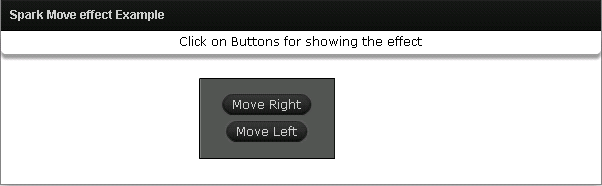
Running Application:
To view this page ensure that Adobe Flash Player version 10.0.0 or greater is installed.