How to design a hanging text


This is a fully description to make a hanging text effect, you can hang any object by this example.
New File: Take a new file with appropriate size.
Write Text: Choose Horizontal type tool (T key) and make formatting to write text as given below.


Brush effect: Take a new layer and choose brush tool (B key) and make formatting to draw ribbon as here.


Layer settings: Now make layer setting as here.

You will have this picture to make selection clearly.

Selection: Choose Polygonal lasso tool (L key) and make selection then press Del key.

You will get it.

Another selection: Make another selection with this tool and press Del key as given below.

Your file should be similar as here.

Change the layer settings as here.

You will get it.
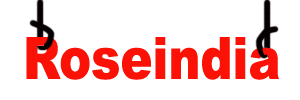
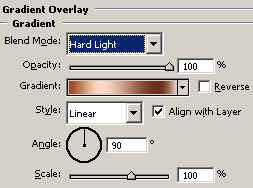
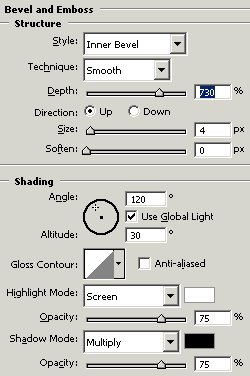
Effects: Go to Layer menu > Layer style > Gradient Overlay, Bevel and Emboss and use same both settings.
This is your final result.