How to make an animated text border


Learn an animation by this example, it is a text border animation. This example will give you instruction to make it so let's try.
New File: Take a new file with black background.

Write text: Choose Horizontal type tool (T key) and make same formatting to write text as here.


Effects: Go to Layer menu > Layer style > Gradient overlay, Bevel and Emboss and use both settings.


You will get it.

Selection: Hold Ctr key and click mouse on the text layer, you will get the selection of the text.

Expand: Now go to Select menu > Modify >Apply Expand.


Fill color: Take a new layer and choose "0914f8" color to fill in the selection.

Now change layer place, hold "Layer 2" and place it in between "text" and Background layer as I have done here.

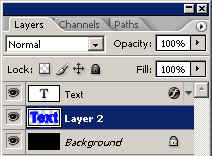
You will get it.

Noise: Go to Filter menu > Noise >Apply Add noise.

You will have it.

Take new layer and use again "Add Noise" option.
 0
0
Image ready: Go to image ready by the clicking on the bottom of the toolbar. Adjust the layers by the frame in the animation window one by one as given below.

This is your final result. 1