


Application client projects
Application client projects contain the resources needed for application client modules. An application client module is used to contain a full-function client Java application (non Web-based) that connects to and uses the J2EE resources defined in your server. When you place the client code in an application client module instead of a simple JAR file, the application client benefits from the server's resources (it does not need to re-specify the class path to J2EE and server JAR files) as well as from easier JNDI lookup (the client container fills in the initial context and other parameters). The application client project allows you to work as if you are creating a standalone Java application in a Java project.
An application client project enables you to do the following things:
Develop the Java classes that implement the client module
Set the application client deployment descriptor
Test the application client
Like Java projects, application client projects contain the resources needed for application clients, including Java files and class files. When you create a new application client project, the environment is set up for Java development. A Java builder is associated with the project so the Java source can be incrementally compiled as it is updated. The application client project contains information about the type hierarchy and Java elements. This information is kept current as changes are made, and the Java builder will incrementally compile the resources within these projects as the resources are updated.
In WebSphere Studio, application client projects are always referenced by enterprise application projects. When you create an application client project, you must specify the Enterprise Application project to which the application client project belongs. A module element is automatically added to the application.xml deployment descriptor for the Enterprise Application project.
An application client project is deployed as a JAR file. This application client JAR file contains all of the class files that a client program needs to use the enterprise beans that are contained in a client module, along with the deployment descriptor and any meta-data extensions and bindings files.
Application client projects are typically run on networked client systems connected to J2EE (EJB) servers. The point of entry for the application client is a Java main-class, which is simply a Java class that contains a static main method. The class is declared in the manifest file of the client module.
A J2EE application client container provides access to the J2EE service (JNDI naming services, deployment services, transaction services, and security services) and communications APIs (internet protocols, Remote Method Invocation protocols, Object Management Group protocols, Messaging protocols, and data formats).
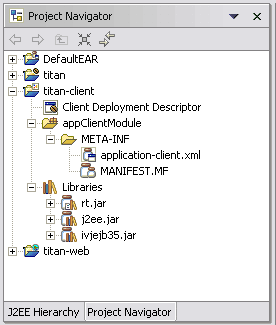
By default, application client projects contain one folder named appClientModule, which contains both Java source code and compiled .class files, along with all the meta-data files in the META-INF subfolder.
Creating an application client project
An application client project can be created and added to a new or existing enterprise application project. Application client projects contain the resources needed for application client modules. Application client projects contain programs that run on networked client systems. An application client project is deployed as a JAR file.
To create a J2EE application client project:
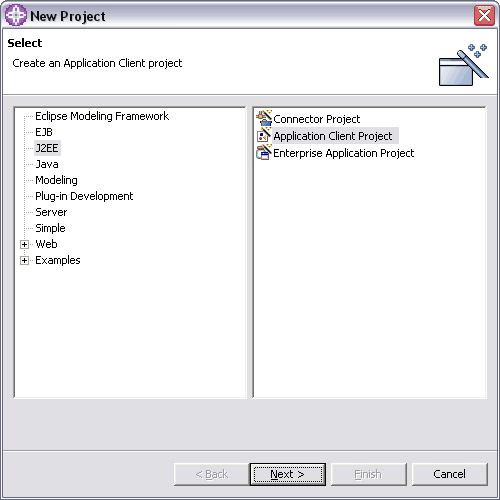
In the J2EE perspective, select File > New > Application Client Project.
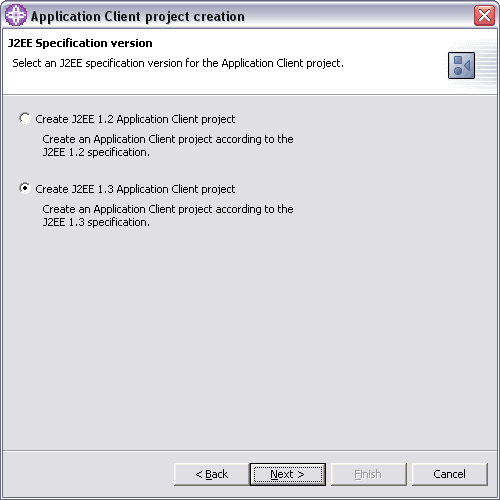
Select the J2EE specification level to which you want your project to adhere, then click Next.
In the Project name field, type a name for the application client project (titan-client). To change the default Project location, click the Browse button to select a new location. If you specify a non-default project location that is already being used by another project, the project creation will fail.
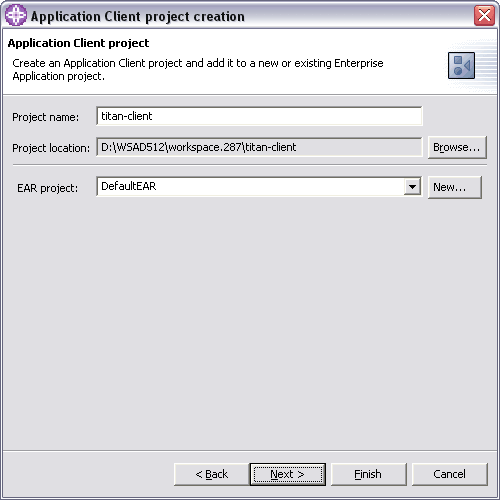
In the Target server drop-down menu, select the application server that you want to target for your development. This option is only available if you enabled server targeting support on the J2EE preferences page.
In the EAR project combination box, type a new project name or select an existing enterprise application project from the drop-down list. Or, click the New button to launch the New Enterprise Application Project wizard.
NOTE: If you type a new EAR project name, the EAR project will be created in the default location with the lowest compatible J2EE version based on the version of the project being created. If you want to specify a different version or a different location for the enterprise application, you must use the New Enterprise Application Project wizard.
Click Next to specify module and JAR file dependencies on the next page of the wizard. If you are creating a new enterprise application project, or if you have no dependencies to specify, click Finish to create the default application client project.
Select and set dependent JAR files for modules within the associated enterprise application project. This updates the runtime class-path and Java project build path with the appropriate JAR files. Application Client modules, EJB modules, and Web modules can all have dependencies on EJB modules or utility JAR files. Modules cannot depend on WAR or Application Client JAR files.
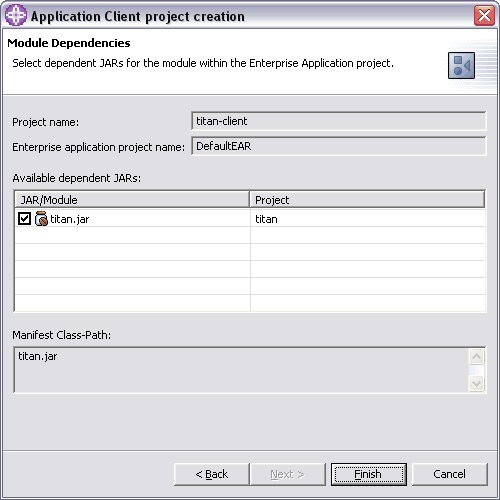
Click Finish.
Create new ReservationClient class in the Application Client Project:
package com.titan.client;

import java.rmi.RemoteException;
import java.util.Hashtable;

import javax.ejb.CreateException;
import javax.naming.Context;
import javax.naming.InitialContext;
import javax.naming.NamingException;
import javax.rmi.PortableRemoteObject;

import com.titan.travelagent.TravelAgent;
import com.titan.travelagent.TravelAgentHome;

/**
 * @author Mikalai Zaikin
 */
public class ReservationClient {

	public static void main(String[] args) {
		if (args.length < 3) {
			System.out.println("Define firstName, lastName, cruise");
			System.exit(0);
		}

		String firstName = args[0];
		String lastName = args[1];
		String cruise = args[2];

		Context initialContext = null;
		TravelAgent agent = null;
		TravelAgentHome agentHome = null;
		Object home = null;

		try {
			Hashtable env = new Hashtable();
			env.put(Context.INITIAL_CONTEXT_FACTORY, "com.ibm.websphere.naming.WsnInitialContextFactory");
			env.put(Context.PROVIDER_URL, "iiop://localhost:2809/");
			initialContext = (Context) new InitialContext(env);
			home = initialContext.lookup("java:comp/env/ejb/TravelAgent");
		} catch (NamingException ne) {
			System.out.println("ReservationClient: can not lookup TravelAgentHome " + ne);
			try {
				initialContext.close();
			} catch (NamingException e) {
				System.out.println("ReservationClient: can not close JNDI Context " + e);
				return;
			}
			return;
		}

		agentHome = (TravelAgentHome) PortableRemoteObject.narrow(home, TravelAgentHome.class);

		try {
			agent = (TravelAgent) agentHome.create();
		} catch (CreateException ce) {
			System.out.println("ReservationClient: can not create TravelAgent " + ce);
			return;
		} catch (RemoteException re) {
			System.out.println("ReservationClient: remote exception" + re);
			return;
		}

		try {
			agent.sendReservation(firstName, lastName, cruise);
		} catch (RemoteException e) {
			System.out.println("ReservationClient: remote exception" + e);
			return;
		}

		System.out.println("ReservationClient: Done !");
	}
}
Adding EJB references
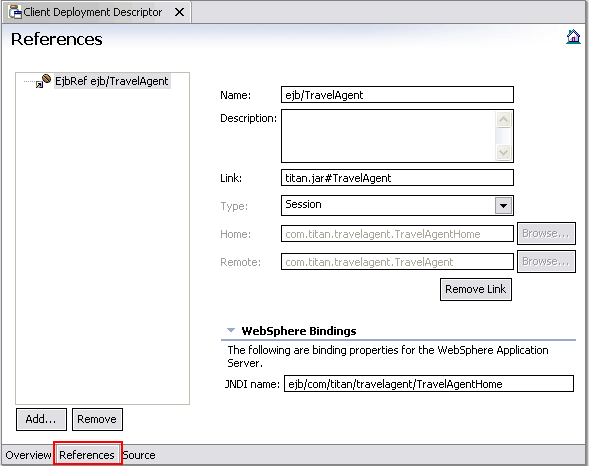
You can add a reference to an enterprise bean to an application client deployment descriptor.
An EJB reference is a logical name used to locate the remote home interface of an enterprise bean used by an application. At deployment, the EJB reference is bound to the home of the enterprise bean in the target operational environment. The container makes the EJB references in the application available in a JNDI naming context. An EJB local reference is used to locate the local home interface.
To add EJB references to an application client deployment descriptor:
In the J2EE Hierarchy view, right-click the desired application client module and select Open With > Deployment Descriptor Editor from the pop-up menu. 0
The client deployment descriptor editor modifies the following resources:
application-client.xml
ibm-application-client-bnd.xmi 1
ibm-application-client-ext.xmi
On the References page of the editor, click Add. The Add Reference wizard opens.
Select EJB reference as the reference type, and click Next. 2
Select the location of the enterprise bean that you want to reference (the referenced bean).
Select the enterprise bean that you are referencing, and update the Name field or accept the default (recommended). The bean must have a remote interface.
Optional: Click Next to review your selections and enter a description for the reference. 3
Click Finish.
Testing J2EE Application Clients
J2EE application clients are like regular Java applications. They contain a main() method that is executed, and they continue executing until the client virtual machine terminates. They can be run as typical "fat client" applications, to display a GUI that connects to a set of EJBs for persistence and business logic, or as server applications that provide services over the network. However, a J2EE application client has several advantages over regular Java applications, because it runs within a lightweight server container. This container can provide the application client with services that used to be available only to other J2EE components. 4
Benefits of using J2EE application clients instead of regular Java applications include:
Ability to run inside a server container, providing richer APIs.
Use of J2EE security, including authentication and server-specific functions, that might include features such as single-sign-on. 5
Guaranteed Java 2 platform APIs available, as well as container extensions.
Simple JNDI lookup, because initial context properties are picked up from the container.
Packaged like other J2EE components, providing portability, easy deployment, and clean packaging. This also supports the J2EE notion of a deployer being able to modify the deployment information in order to move to a different server without changing code. 6
Use of the java:comp/env namespace to indirectly reference EJBs.
To build a full command line to launch an application client, do the following:
Switch to the Debug perspective (Window > Open Perspective > Other > Debug). 7
In the main toolbar, click the Run icon and select Run, alternatively click the Debug icon and select Debug.
In the Launch Configurations pane, select the type of configuration that you want to create, either WebSphere v4, v5, or v51 Application Client and click New.
Important: The WebSphere v4 Application Client launcher supports J2EE level 1.2. The WebSphere v5 and v51 Application Client launcher supports both J2EE levels 1.2 and 1.3. 8
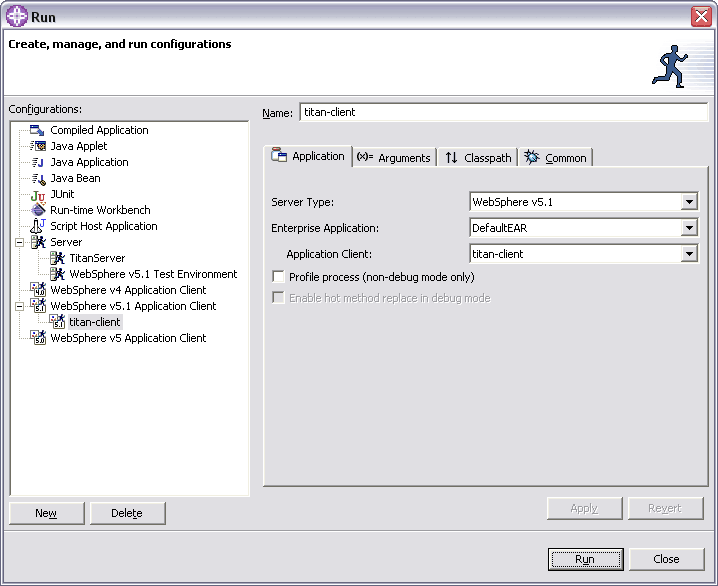
In the Name field, enter the name of your configuration (titan-client).
In the Application tab, select an Enterprise Application from the Enterprise Application list (DefaultEAR).
If selected, the Profile process (non-debug mode only) check box allows you to use the profiling tools provided in the workbench to analyze the performance of your client application. You cannot use profiling when the server is started in debug mode. 9
If you want to make changes to your code while you are debugging, select the Enable hot method replace in debug mode check box.
In the Arguments tab, you can add Program arguments and VM arguments as well as specifying your working directory. All WebSphere Application Server client launcher arguments begin with -CC. The default Program argument is -CCverbose=true, which will provide useful debugging information and at run-time. Any arguments that do not start with -CC will be passed to your application at run-time.
Add 3 program arguments: Mikalai Zaikin Alaska 0
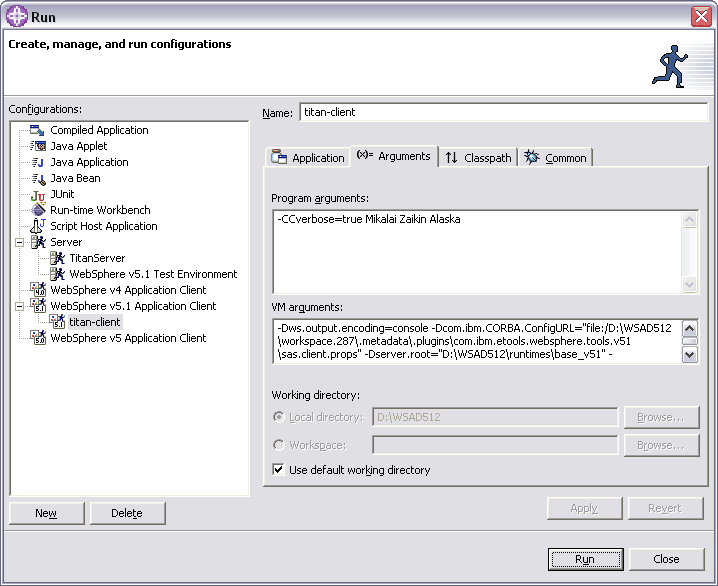
When you have completed configuring your launch configurations, click Apply to set your configuration, then click Run to launch the application client.
You will see the following information in the client's console:
IBM WebSphere Application Server, Release 5.1
J2EE Application Client Tool
Copyright IBM Corp., 1997-2003
WSCL0012I: Processing command line arguments.
WSCL0001I: Command line, property file, and system property arguments resolved to:
        File to launch          = D:/WSAD512/workspace.287/DefaultEAR
        CC Property File        = null
        Client Jar File         = titan-client.jar
        Alternate DD            = null
        BootstrapHost           = zaikin
        BootstrapPort           = <default>
        Trace enabled           = false
        Tracefile               = null
        Init only               = false
        Classpath Parameter     = null
        Security Manager        = disable
        Security Manager Class  = Not used. -CCsecurityManager=disable
        Security Manager Policy = Not used. -CCsecurityManager=disable
        Exit VM                 = false
        Soap Connector Port     = null
        Application Parameters  = Mikalai Zaikin Alaska
        Provider URL            = null
        Dump Java Name Space    = null
        Admin Connector Host    = null
        Admin Connector Port    = null
        Admin Connector Type    = null
        Admin Connector User    = null
WSCL0013I: Initializing the J2EE Application Client Environment.
WSCL0025I: Binding EJB reference object:
           JNDI name: ejb/TravelAgent ==> ejb/com/titan/travelagent/TravelAgentHome @ corbaloc:iiop:zaikin
           Description: null
WSCL0031I: The object was bound successfully.

WSCL0600I: Binding HandleDelegate object.
WSCL0031I: The object was bound successfully.

WSCL0900I: Initializing and starting components.
WSCL0910I: Initializing component: com.ibm.ws.runtime.component.NonRecoverableComponentImpl
WSCL0911I: Component initialized successfully.
WSCL0910I: Initializing component: com.ibm.ws.activity.ActivityServiceClientComponentImpl
WSCL0911I: Component initialized successfully.
WSCL0910I: Initializing component: com.ibm.ws.webservices.wssecurity.core.WSSecurityClientComponentImpl
WSCL0911I: Component initialized successfully.
WSCL0910I: Initializing component: com.ibm.ws.webservices.component.WSClientImpl
WSCL0911I: Component initialized successfully.
WSCL0901I: Component initialization completed successfully.
WSCL0035I: Initialization of the J2EE Application Client Environment has completed.
WSCL0014I: Invoking the Application Client class com.titan.client.ReservationClient
ReservationClient: Done !
The TitanServer console will show output from reservation bean:
[18.08.05 16:57:49:509 EEST]  9a8c367 SystemOut     O TravelAgentBean: Cruise reservation sent
[18.08.05 16:57:49:509 EEST]  fd30367 SystemOut     O ReservationProcessor: Customer: Mikalai Zaikin
[18.08.05 16:57:49:509 EEST]  fd30367 SystemOut     O ReservationProcessor: Cruise: Alaska
NOTE: You may get an org.omg.CORBA.COMM_FAILURE when trying to access a test environment from a J2EE client running on a remote machine. You have to configure the ORB bootstrap host name defined in the remote server configuration to fix the problem. To edit the ORB bootstrap host name, go to the Ports page of the server editor. In the ORB bootstrap port section, type the remote host name in the Host name field. Save the editor and restart the test environment.
Visit http://java.boot.by for the updates. 1
| Prev | Up | Next |
| Design and develop custom tags | Home | Implement Java clients calling Web Services |
